Reduce no-shows
proLayer WhatsApp reminders, one-tap confirmations, automatic no-show tagging, and win-back nudges to cut no-shows and recover lapsed clients.
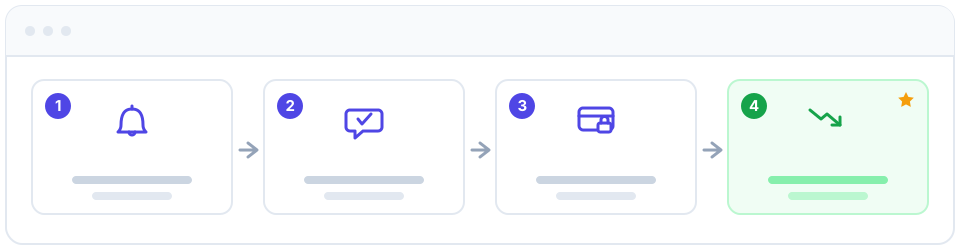
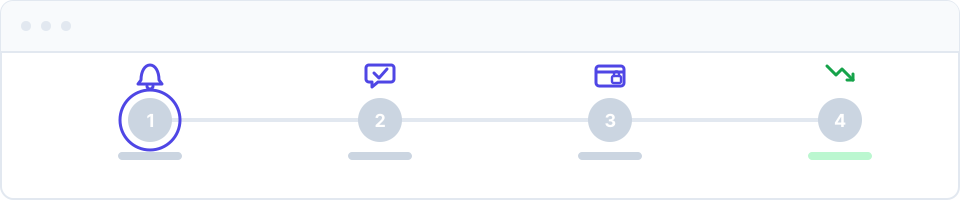
No-shows quietly drain a business: empty slots, idle staff, and revenue you can never recover. Apolaris AI tackles them with several distinct contact center (CCaaS) features that work together — automated WhatsApp reminders with built-in one-tap confirmations, automatic no-show tagging of appointments nobody confirmed, and win-back / rebooking nudges that re-engage clients who have lapsed. This page shows how each piece works, who can turn it on, and where they live in the settings.
These are separate features, not a single "no-show follow-up" automation. Reminders and confirmations keep upcoming appointments on track; no-show tagging records the misses; win-back and rebooking nudges target clients who have not visited in a while. Layer the ones that fit your business.
Reminders, win-back nudges, and the other automations on this page send business-initiated WhatsApp messages, which are governed by platform-level compliance switches that ship off for new organizations. If your reminders or automations do not send even though they are enabled, proactive messaging may simply not be turned on yet — contact support, and see Contact Center (CCaaS) for the details. Replies to customers who message you are never affected.
Who can do this
| Action | Who can do it |
|---|---|
| Configure reminders, no-show tagging, and the retention automations | Domain manager (is_manager) only — the settings page is manager-only. A privilege admin (can_manage_privileges) cannot open it. |
| Send a pay-by-link payment request inside a conversation | A contact center agent holding can_use_ccaas (managers always qualify), and only when payments are enabled. |
| Set up payments / deposits (provider, currency, deposit policy, Stripe secrets) | Apolaris only. Online payments touch live infrastructure and secrets, so they are configured by Apolaris (the platform operator), not the business manager. |
Because the whole settings page is manager-only, you cannot delegate "turn on reminders" to a non-manager privilege admin. If a non-manager needs to do this, a manager has to either make the change or grant is_manager.
Where these settings live
Open the Contact Center and go to its settings. The page has tabs across the top:
| Tab | What it controls | Who sees it |
|---|---|---|
| AI Behavior | How the virtual receptionist replies, per organization or per site | Manager |
| WhatsApp Numbers | Which number serves which site (adding/removing numbers is done by Apolaris) | Manager |
| Reminders | Reminder schedule and template (confirmations are built in here) | Manager |
| Automations | Retention nudges (rebooking, win-back, birthday, review) and the automatic no-show tagging setting | Manager |
| Payments | Deposits and pay-by-link — configured by Apolaris | Managed by Apolaris (not visible to your team) |
The no-show tagging field lives on the Automations tab, not on the Reminders tab, even though it relates to reminders. Reminders and no-show tagging are saved by different forms.
The recipe
1. Turn on appointment reminders (with built-in confirmations)
Reminders message clients on WhatsApp before their visit, and the default message already asks them to reply CONFIRMAR, REAGENDAR, or CANCELAR. There is no separate "confirmations" toggle — enabling reminders enables confirmations.
- Open the Reminders tab in the Contact Center settings.
- Tick Enabled.
- Set when reminders send under the hours-before-appointment field. A common setup is
24,2(24 hours and 2 hours before the start time). Only positive whole numbers are kept; if you leave it blank it defaults to24,2. - Optionally edit the message template. If you leave it empty, the default WhatsApp text is used, which already includes the CONFIRMAR / REAGENDAR / CANCELAR prompt. Available placeholders are
{name},{service},{site},{date}, and{time}. - Save. New and existing appointments are picked up automatically from the calendar — the scheduler sends one reminder per booking per offset.
How confirmations are recorded. When a client replies, the reply handler reads the message:
- A CONFIRMAR-type reply (e.g. "confirmo", "ok", 👍) on a single imminent booking flips that booking's status to confirmed.
- A CANCELAR reply cancels it; a REAGENDAR reply starts a reschedule.
Front-desk staff then see at a glance, on the calendar, which appointments are genuinely confirmed versus still only booked.
The reply only acts automatically when the client has exactly one upcoming booking in the next 48 hours. If they have none, or more than one, the AI receptionist steps in and asks which appointment they mean.
Keep client phone numbers clean in Customers. A reminder can only reach a correct WhatsApp number; a customer with no phone is skipped entirely.
2. Auto-tag the no-shows you do get
When a client never confirms and never turns up, you want that recorded so it stops counting as a live booking and shows up in reporting. Apolaris can tag these automatically.
- Open the Automations tab.
- Find Auto-mark a still-unconfirmed appointment as no-show this many hours after it ended.
- Enter the number of hours after the appointment's end time at which an appointment that is still in booked status (never confirmed, never completed) should be flipped to no_show. Enter
0to leave it off. - Save.
How it behaves:
- Only appointments still in booked status are tagged. A confirmed appointment is left alone — the client signalled they were coming, so it is not auto-marked.
- An appointment is only eligible once it ended more than the configured number of hours ago.
This auto-tagging only fires when the scheduled job that processes outreach and no-show tagging actually runs (it is driven by a periodic task, not in real time). If the job is not scheduled, no appointments are tagged automatically. You can always mark a no-show by hand on the calendar.
3. Win back lapsed clients and prompt rebookings
The retention automations re-engage customers based on how long it has been since their last visit — they are not triggered by a specific no-show. They are the right tool for "this client used to come and stopped," which often follows a missed appointment.
On the Automations tab you can enable any of four automation kinds, each its own toggle:
| Automation | Triggered by | Typical use |
|---|---|---|
| Rebooking nudge | Days since the client's last visit (default threshold ~42 days) | Gentle "time for your next visit" message |
| Win-back (lapsed client) | Days since the client's last visit (default threshold ~90 days) | Re-engage someone who has drifted away |
| Birthday greeting | Days before the client's birthday (0 = on the day) |
Goodwill / invitation to come in |
| Post-visit review request | Sent after a completed visit | Ask for a review via the {link} placeholder |
To enable one:
- On the Automations tab, tick the automation you want.
- For rebooking or win-back, set the threshold in days (days since the last visit). For birthday, set days before the birthday. For the review request, supply the review link used by the
{link}placeholder. - Optionally customise the message template (placeholders
{name},{service},{site},{link}). Leave it blank to use the default Spanish copy. - Save.
Each eligible customer receives at most one message per automation kind per window, so clients are not spammed.
Win-back and rebooking re-engage lapsed clients by days-since-visit. They are not a "no-show follow-up" and will not single out the person who missed yesterday. To turn one missed appointment into a recovered booking, mark it as a no-show (step 2) and rely on the rebooking nudge once enough days pass, or have an agent reach out directly.
4. (Optional) Require a deposit with pay-by-link
A small deposit gives clients a reason to show up and protects high-demand or long appointments. On Apolaris, deposits are configured by Apolaris (the platform operator) because they involve live payment infrastructure and secrets.
How it works in practice:
- Setup is handled by Apolaris. The provider, currency, deposit policy/amount, the optional "send a deposit link automatically when the AI books" option, and the Stripe secrets are all configured at platform level and do not appear in your settings. If you want deposits, contact Apolaris to enable them — a business manager cannot turn them on themselves.
- The link is sent from inside a conversation. Once payments are enabled, a contact center agent (with
can_use_ccaas) sends a pay-by-link payment request from within an active CCaaS conversation. There is no standalone "request deposit" button on a booking or a customer record. - The client pays online. The link opens a hosted checkout; when paid, the payment is recorded against that customer/contact.
A pay-by-link deposit is recorded as a standalone payment against the customer. It is not automatically deducted from a point-of-sale sale at checkout — there is no deposit field on a sale and no automatic offset. At checkout, treat the deposit as already collected and take the remaining balance manually, accounting for what the client already paid.
Reserve deposits for your highest-risk slots — new clients, large groups, and lengthy services — so regulars are not asked to pre-pay for a quick visit.
5. Follow up on chats that never became bookings
Some lost revenue never even reaches the calendar: a customer chats on WhatsApp, asks about prices, and silently drops off. The Contact Center can flag exactly those conversations — set Alert when a chat has no booking after (hours, 0 = off) on the AI Behavior tab of the agent settings (the default is 2 hours), and managers — plus the conversation's assignee, if it is assigned — get a notification that deep-links straight to the chat so someone can follow up personally. Each conversation alerts at most once. See Contact Center (CCaaS) for the details.
Cross-data impacts
- Confirmations change booking status. A confirmed reply flips the appointment to confirmed; a cancel reply cancels it. That status drives the calendar, no-show tagging eligibility, and reporting.
- No-show tagging changes reporting. Auto-tagging flips booked to no_show, which is what your no-show metrics in Analytics count. Confirmed appointments are excluded from tagging.
- Deposits are separate from sales. A deposit collected by pay-by-link does not reduce or reconcile against a POS sale automatically; reconcile the balance by hand.
Tips
- Start with reminders (which include confirmations); they are the highest-leverage, manager-doable step.
- Add no-show tagging so misses are recorded consistently and your reporting reflects reality.
- Use win-back / rebooking nudges to recover the clients those misses cost you over time.
- Bring in deposits only where no-shows genuinely hurt, and ask Apolaris to set them up.
- Track the impact in Analytics: compare no-show rates before and after.
- See the full messaging and agent setup in Contact Center (CCaaS).
Rolling out everything at once can over-message clients. Turn on one piece at a time and confirm reminders are not duplicating across channels before adding more.