Organizations & sites
basicHow your business, its locations, and (for chains) a central HQ store are structured.
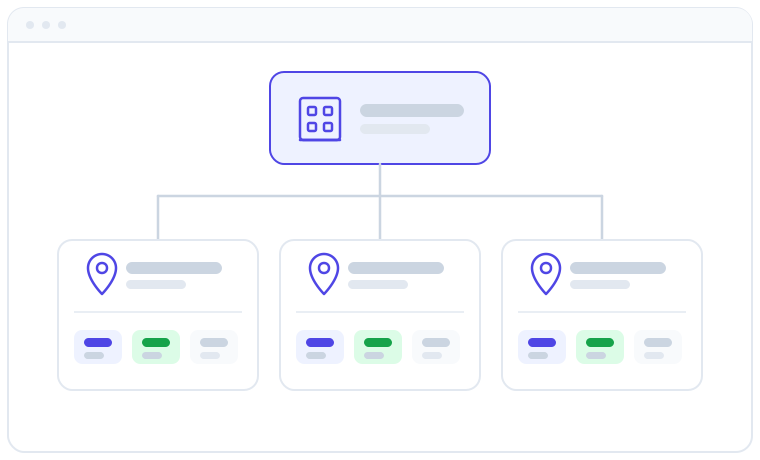
Apolaris AI organizes everything around two simple ideas: your organization (your business as a whole) and your sites (its physical locations). Understanding this structure makes it clear where your customers, sales, staff, and reports live, and it lets the same platform run a single location or a multi-branch chain without changing how you work.
Your organization
Your organization is your business. Everything you create in Apolaris AI, customers, appointments, sales, staff, inventory, expenses, and payroll, belongs to your organization. It is also fully isolated: every record is tagged to your organization behind the scenes, so your data is never shared with or visible to any other business using the platform.
This isolation is what makes Apolaris AI safer than a shared spreadsheet or a folder of disconnected apps. There is one trusted source of truth for your whole business, and only your team can see it.
Sites (your locations)
A site is a physical location (a branch), for example "Downtown" and "Mall" locations. Day-to-day operations are organized by site, so each location keeps its own view of what matters locally:
- Appointments and calendar
- Inventory and stock
- Expenses
- Payroll
Each site also carries its own fiscal and receipt identity and its own operating hours, which is important when one organization runs branches in different cities or under different legal entities:
- Legal business name, tax ID, fiscal regime, fiscal address, and place of issue — these print on the receipts issued by that site.
- Opening and closing times — these set the visible bounds of that site's calendar.
Customers and your overall reporting belong to the organization, so a client who visits two of your branches is still one customer, not two records.
Closed days: closures and public holidays
Opening hours describe a normal week — but not every closed day follows a weekly pattern. Sites support two kinds of closed days, both manager-managed, with different reach:
- Closures — exceptional closed dates or ranges (a renovation week, a local festival, "Summer break"), optionally repeating every year. They stop bookings.
- Public holidays — the official holiday calendar of the site's location. They close the site and carry staffing and pay semantics.
Closures: exceptional closed dates
Managers add closures under Bookings → Site closures in the sidebar: pick the Site, give the closure a Name, set a Start date and End date (a single day or a range), and optionally tick Repeat every year — annual ranges may even cross New Year. The page lists your upcoming and annual closures, and any closure can be removed again.
A closure closes every booking channel for its dates. As the page itself puts it, closures are authoritative across every booking path, including flows and the booking agent:
- The AI agent stops offering slots on those dates and tells customers you're closed — creating or moving an appointment onto a closed date is refused even mid-conversation.
- Conversation flows answer with a closed notice instead of quoting your ordinary hours.
- The online booking page greys the date out in its day picker, and a customer who reaches it sees a "we are closed" message instead of an empty day.
A closure is a booking-side stop, not an HR event: staff schedules, leave day-counts, and payroll are unchanged, and your team can still create an appointment on the staff calendar for a closed date on purpose. For a day that should behave as a full non-working day, use a public holiday.
Public holidays: per-site, with AI lookup
Each site carries its own public-holiday list, edited on the site form (open the site from Settings → All Sites; the Public holidays panel sits right after the opening hours — it's on Add Site too). Add dates by hand, or pick a Year and click Suggest with AI: Apolaris looks up the official public holidays for the site's location and shows them as checkboxes. Nothing is saved automatically — you review the list, tick the dates that apply, click Add selected, and save the site.
Treat the AI suggestions as a starting point, not an official source — a lookup can mislabel or miss a date. Check the list against your official holiday calendar before applying it.
A public holiday is a fully closed, non-working day for that site. In one move it:
- Closes availability everywhere — no bookable slots on the staff calendar (the day shows a closed panel naming the holiday), the AI agent and flows treat the site as closed, and the online booking page greys the date out.
- Marks staff as non-working — employees who follow site hours or a weekly pattern automatically get the day off.
- Is excluded from leave day-counts — a whole-day leave request spanning the holiday doesn't spend an allowance day on it.
- Shrinks payroll divisors — the holiday isn't a scheduled working day, so day rates are spread over fewer days. See Payroll.
Holidays are explicit dates per year — there is no automatic annual repeat, and re-seeding the next year takes one AI lookup. For a fixed annual closed date, use a closure with Repeat every year instead.
How a date's schedule is decided
For any single date, an employee's effective schedule resolves in a strict precedence order — the first rule that applies wins:
- Approved leave — the person is off (or off for the hours an hourly leave covers).
- A dated shift — a one-off shift for that exact date. This is also how you deliberately staff a site on a holiday: an explicit dated shift beats the holiday.
- A public holiday — the site is closed and the person is non-working.
- The weekly pattern — the person's recurring weekly schedule.
- The site's opening hours — the default when nothing above applies.
Weekly schedules, dated shifts, and leave are managed in HR: team, leave & documents.
Why this model scales
- Start with one site. A single location runs everything from one place, no extra setup.
- Add locations when you grow. Each new branch becomes another site under the same organization.
- Keep one customer list and one set of reports. You see the whole business at a glance, or drill into a single location.
- Give staff the right access. Site managers see every site in the organization; other staff see only the sites they are assigned to (plus any sites they have been explicitly granted). Access is granted per-person, not by a fixed "owner" role.
There is no separate "owner" account type. Whether someone can see across all sites depends on whether they are a manager — managers see all of the organization's sites, while everyone else sees only their own. Who can do what is covered in Employees, users & permissions.
Running a multi-branch chain
For franchises and multi-branch chains, the organization can also run a central HQ store that holds material and supplies it to your sites. You can run one or more of these central warehouses (for example, regional hubs), and sites request or transfer stock from them rather than each branch buying everything separately. This is a module plus a set of privileges — there is no separate "franchise" account type to switch on.
Setting up HQ stock, ordering, and transfers is a topic of its own. See Material ordering (franchise).
Switching between locations (or organizations, if you manage more than one) is quick from the top of the screen. See Switching site & organization.
Who can see and do what is controlled separately. Learn more in Employees, users & permissions.
Tips
- Name your sites the way your team refers to them in conversation; it makes calendars and reports instantly recognizable.
- Compare locations side by side in Analytics & Data Explorer to spot your strongest and weakest branches.
- New to the platform? Start with Welcome to Apolaris AI and Dashboard & navigation.