Monthly close & payroll
proReconcile the month, run payroll safely (overlap guard), and export pay receipts and records.
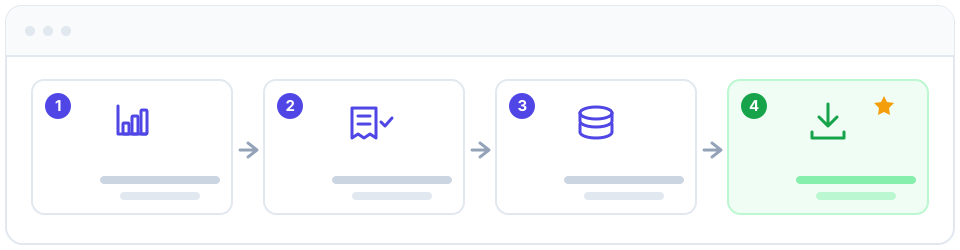
Monthly close is the end-of-period routine that turns a month of activity into clean books and accurate paychecks. Because Apolaris AI already holds your sales, expenses, hours, tips, and bonuses in one place, you reconcile and pay your team in a single connected flow instead of stitching together spreadsheets and disconnected apps.
Who can do this
Generating and finalizing a payroll run is manager-only: the Payroll dashboard appears in the menu only for organization managers (is_manager). A privilege admin (can_manage_privileges) can manage users but cannot run payroll unless they are also a manager. Reviewing sales, expenses, and analytics for the period follows normal site scoping — you see the sites your account can see.
If you don't see Payroll in your menu, you are not a manager. Ask an organization manager to run the payroll part of this routine.
Before you start
Pick the site (location) or whole organization you're closing and confirm you're looking at the right period. If you manage several locations, see Switching site & organization.
Closing is a review-and-confirm routine, not a hard lock. You can still correct entries afterward, but do your edits before you export receipts so figures stay consistent.
The monthly close recipe
- Review sales for the month. Open Sales & point of sale and scan the period's transactions. Confirm every sale has the right amount, payment method, tips, and any discounts applied. Catching a mis-keyed sale now keeps your revenue and payroll numbers honest. Only collected sales count — refunded or failed sales are excluded from revenue, tips, and bonuses.
- Approve outstanding expenses. Go to Expenses and clear anything still pending approval. Approved expenses flow straight into your profit figures, so nothing should be left in limbo at close.
- Check the analytics. Open Analytics & Data Explorer and review revenue, profit, and per-staff performance for the month. This is your sanity check: the totals here should match what you saw in sales and expenses. Anomalies usually point to a missing entry rather than a real surprise.
- Generate the payroll run. In Payroll, generate the run for the period. Apolaris AI pulls hours, tips, and bonuses automatically from the data you just reviewed, so you're not re-typing anything. See How bonuses are calculated below — bonuses are not automatic for everyone; they depend on each site's bonus configuration.
- Review bonuses and deductions. Go through each employee's line. Verify the auto-calculated bonus, tips, any extra bonus you add, and deductions (unpaid leave, statutory/legal deductions) before you finalize. Adjust where needed while the run is still open.
- Finalize and export. Once the run looks right, finalize it and export pay receipts for your team plus a full-period summary for your records. See Exporting pay receipts and records for the available formats.
The payroll overlap prompt
When you generate a run, Apolaris AI checks the new period's date range against periods you've already processed. There are two outcomes worth knowing:
- Exact same period already processed. The system refuses with "This payroll period has already been processed." There is nothing to confirm — the period exists; open it instead of regenerating.
- Overlapping (but not identical) period. If the new range overlaps an already-processed period — for example running a weekly run on top of an existing 15-day cycle — the system stops and warns that generating it again will double-count payroll for the overlapping days, naming the overlapping period(s). It then asks you to either cancel the existing period first or confirm to generate it anyway.
Do not blindly confirm the overlap prompt. Every payroll line feeds payroll reports (P&L, profitability, per-staff KPIs), so overlapping days get counted twice across your analytics. The safe path is to cancel the existing overlapping period first, then regenerate the correct, non-overlapping range. Only confirm-anyway if you genuinely intend to pay those days twice.
How bonuses are calculated
Step 5 says "review bonuses" — here's what is actually behind that number so the review is meaningful instead of a black box.
Auto-bonus is driven by per-site bonus configuration, not a single global rule. Each site has a bonus pool percentage, a distribution method, and an optional set of sales-bonus tiers. Bonuses are paid against an employee's collected sales for the period:
| Setting | What it controls |
|---|---|
| Bonus pool percentage | Size of the site's bonus pool relative to sales. |
| Distribution method | How the pool is split (for example, by performance share). |
| Sales bonus tiers | Sales thresholds that unlock a bonus percentage. A sale total below the configured tier earns no bonus. |
Because a sale below the threshold generates nothing, a missing or low bonus is often a configuration question, not a data error. Review and adjust these under Payroll → Bonus configuration (/hr/payroll/bonus-config/) before generating the run.
Tips are handled separately: they are paid in full, untaxed, and added on top of gross pay. A tip belongs to the explicit tip recipient when one is set, otherwise to the sale's employee.
Exporting pay receipts and records
After finalizing, you have two distinct export surfaces:
| Export | Scope | Formats |
|---|---|---|
| Per-employee pay receipt | One employee's payslip for the period | |
| Whole-period payroll export | The full run (all employees) | PDF, CSV, XLSX |
Use the per-employee pay receipt PDF to hand each team member their payslip, and the full-period PDF/CSV/XLSX as the summary for your own records or your accountant. Pair this with an Analytics export for a complete, shareable monthly package.
Payroll, expenses, and your P&L
When a payroll entry is created, Apolaris AI also writes a mirror expense in the payroll category so the payout shows up in your expense ledger. This mirror is loosely coupled: it is a convenience record, not the source of truth.
Your profit reports read payroll entries, not the mirror expense. Deleting a "duplicate payroll expense" from the Expenses list will not de-inflate your P&L or KPIs — the underlying payroll entry still counts. If you believe a period was paid twice, fix it at the source: cancel the duplicate payroll period (which is also what the overlap prompt steers you toward), don't just delete the expense row.
Tips
- Run close on a consistent day each month so the period boundaries are predictable and nothing carries over by accident.
- Resolve sales and expenses before generating payroll. Since tips and bonuses feed payroll directly, fixing them first means the run is right the first time.
- Use Analytics & Data Explorer to compare this month against the last few — a sudden swing is often the first sign of a data-entry slip.
Repeating this every month builds a clean historical record automatically. Over time that history powers better forecasting and bonus planning with zero extra bookkeeping.
For a step-by-step on adding someone new to the next run, see Onboard a new employee. For team hours, leave, and documents that feed payroll, see HR: team, leave & documents.