Employees, users & permissions
proThe difference between an employee record and a login account, how granular privileges work, the three access tiers (manager, privilege admin, limited staff), site scoping, and multi-organization logins.
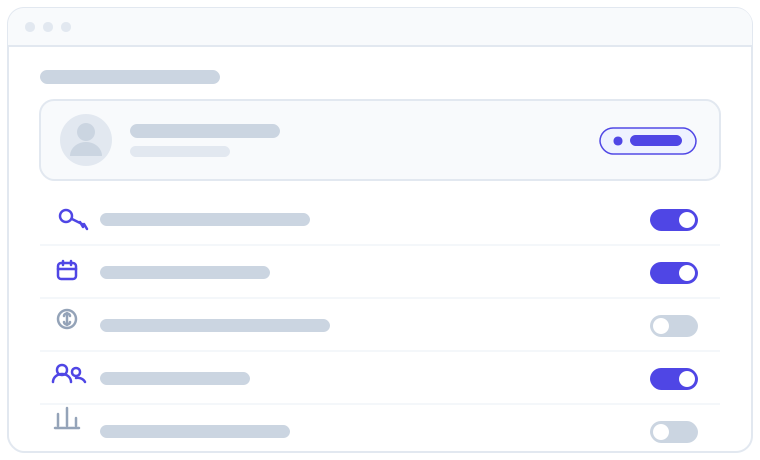
Apolaris AI keeps two ideas separate: the employee (a member of your team who shows up on the calendar and gets paid) and the user account (a login that lets a person sign in). Understanding the split is the key to running a clean, secure business — everyone who works gets credit and pay, while only the people who need to touch the system get a password.
Employee vs. user account
- Employee — a staff record. Employees appear in the Appointments & calendar (as long as their Visible in booking calendar setting is on — it is by default), can be assigned to bookings, show up in Payroll, and are tracked in HR. An employee does not need a login to exist.
- User account (login) — an optional sign-in identity. It carries the email/password, the permissions, and the site visibility for one person.
- Linking the two — a user account can be linked to an employee. Once linked, the person can sign in and be scheduled, paid, and reported on as the same identity. A junior team member who never logs in can stay employee-only; a manager who books, sells, and reviews reports is a linked user.
Because the records are separate, you can offboard someone's login (revoke access) without deleting their employee history, sales, or payroll record.
How permissions work
Access is controlled by granular can_* toggles on each user account. Many follow a familiar view / add / edit / delete pattern for a data area — customers, appointments (bookings), sales, services, sites, and employees each have their own four toggles. Grant only what a role needs:
- Open Users & privileges.
- Pick the user, then tick the exact capabilities for their job (for example, view appointments and add sales for front-desk staff).
- Save. Changes take effect the next time they load a page.
Functional privileges (beyond view/add/edit/delete)
A large and growing set of toggles do not map to view/add/edit/delete — they switch on a specific capability or behavior. These are just as important to understand as the CRUD families. Common ones include:
| Privilege | What it enables |
|---|---|
Use the POS (can_use_pos) |
Person may open the POS workspace ("Caja"). They still land in the CRM after login |
POS only — no CRM access (pos_only) |
Locks the person to the POS; the CRM is closed to them. Requires "Use the POS" |
View own earnings (can_view_own_earnings) |
See their own earnings / bonus-progress screen in the portal (on by default) |
View whole-site schedule (can_view_site_schedule) |
See every employee's appointments at their sites (e.g. a receptionist), not just their own |
Drag appointments to reschedule (can_drag_appointments) |
Drag an appointment card to a new slot on the calendar (also needs edit booking) |
Use data explorer (can_explore_data) |
Build and run ad-hoc reports in the Data Explorer (data stays scoped to their visible sites) |
Use contact center (can_use_ccaas) |
Work the contact center (CCaaS) inbox for their site |
Order Material from HQ (can_order_material) |
Buy material from the central warehouse for their sites |
Manage Material Requests (can_manage_material_requests) |
HQ operator: curate the catalog, control HQ stock, approve/ship incoming orders |
Use / Manage Loyalty (can_use_loyalty / can_manage_loyalty) |
Enroll customers and redeem points / configure the brand-wide program |
Manage Discount Codes (can_manage_discounts) |
Create promo codes and read the impact report |
| Request / approve / view vacation | Submit leave, approve it, and view the team vacation calendar |
Manage privileges (can_manage_privileges) |
Add, edit, and remove other users and their privileges — see Privilege admin below |
See the full, current list of toggles in the Privileges reference.
The three access tiers
There are no fixed role names in Apolaris AI — access is granular and per-privilege. In practice, though, accounts fall into three tiers.
Domain manager (is_manager)
A separate flag, is_manager, is a broad bypass: a manager passes almost every individual check without you ticking each box. Crucially, managers see and do everything across the whole organization — every site in the domain, not only "their" site. Site visibility for a manager always returns all sites in the organization (see Site scoping below).
A manager can always administer privileges and is the only tier (besides the platform operator) that can grant the protected role flags.
Privilege admin (can_manage_privileges)
You can delegate user management below the manager level. A non-manager granted can_manage_privileges can add, edit, and remove other user accounts and their privileges — without being a manager. (Internally, the right to administer users is "manager or can_manage_privileges".)
This is a distinct, security-relevant tier: it lets an office administrator onboard staff and adjust day-to-day permissions while you reserve the full manager bypass for genuine site leads.
Escalation guard. A privilege admin (a non-manager with can_manage_privileges) cannot grant or revoke the two protected role flags — is_manager and can_manage_privileges. Those checkboxes are deliberately left untouched when a privilege admin saves. Only a manager (or the Apolaris platform operator) can promote someone to manager or hand out the privilege-admin flag. This blocks a privilege admin from escalating themselves — or anyone else — to manager.
Limited staff
Front-desk staff and service staff get a tight set of can_* toggles, so they handle daily work without reaching reports, payroll, or settings. Their reach is further bounded by site scoping (below).
Site scoping (who sees which sites)
A user's permissions are bounded by the sites they can see:
- Managers see every site in the organization.
- Everyone else sees their linked employee's assigned sites UNION any explicit visible sites grants you add on their account.
So a non-manager with no extra grants is limited to wherever their employee record is assigned. Employee site assignment is optional, so an employee can have no sites at all — in that case only the explicit visible sites grants on the account apply. Adding an explicit visible sites grant widens that set without touching the employee's assignments. This rule is applied consistently across the calendar, lists, reports, and the Data Explorer.
To let a receptionist cover two locations, grant their account the second site under visible sites — you don't have to reassign their employee record. See Switching sites.
Multi-organization logins
One login can belong to more than one organization. A user account has a single active organization (which all scoping follows) plus any extra organizations it is allowed to switch into using the org selector in the top bar. Switching the active organization re-scopes everything — sites, data, and privileges — to that org.
This is how a regional lead or a multi-brand owner uses a single email and password across several organizations instead of juggling separate logins.
Privileges are per-account, so the same person carries the same toggles into each organization they can switch into. Whether they can switch at all depends on the extra-organization grants on their account, which only a manager or the Apolaris operator sets up.
Tips
- Start narrow, add later. It's safer to grant one more toggle on request than to claw back access.
- Reserve
is_managerfor genuine site leads — it's a broad, organization-wide bypass. - Delegate routine user onboarding with
can_manage_privilegesinstead of handing out manager; the escalation guard keeps it safe. - See the full list of toggles in the Privileges reference.
This beats a shared spreadsheet of who-can-do-what: permissions live with each login, apply automatically on every screen, and update everywhere the moment you change them.
Anyone with a manager flag can change sensitive data and other users' access across every site in the organization. Audit who holds is_manager and can_manage_privileges during your monthly close.