Appointments & calendar
basicBook, edit, move, and reassign appointments on the calendar — including who can book for whom, conflict and leave protection, and how a completed appointment becomes a sale.
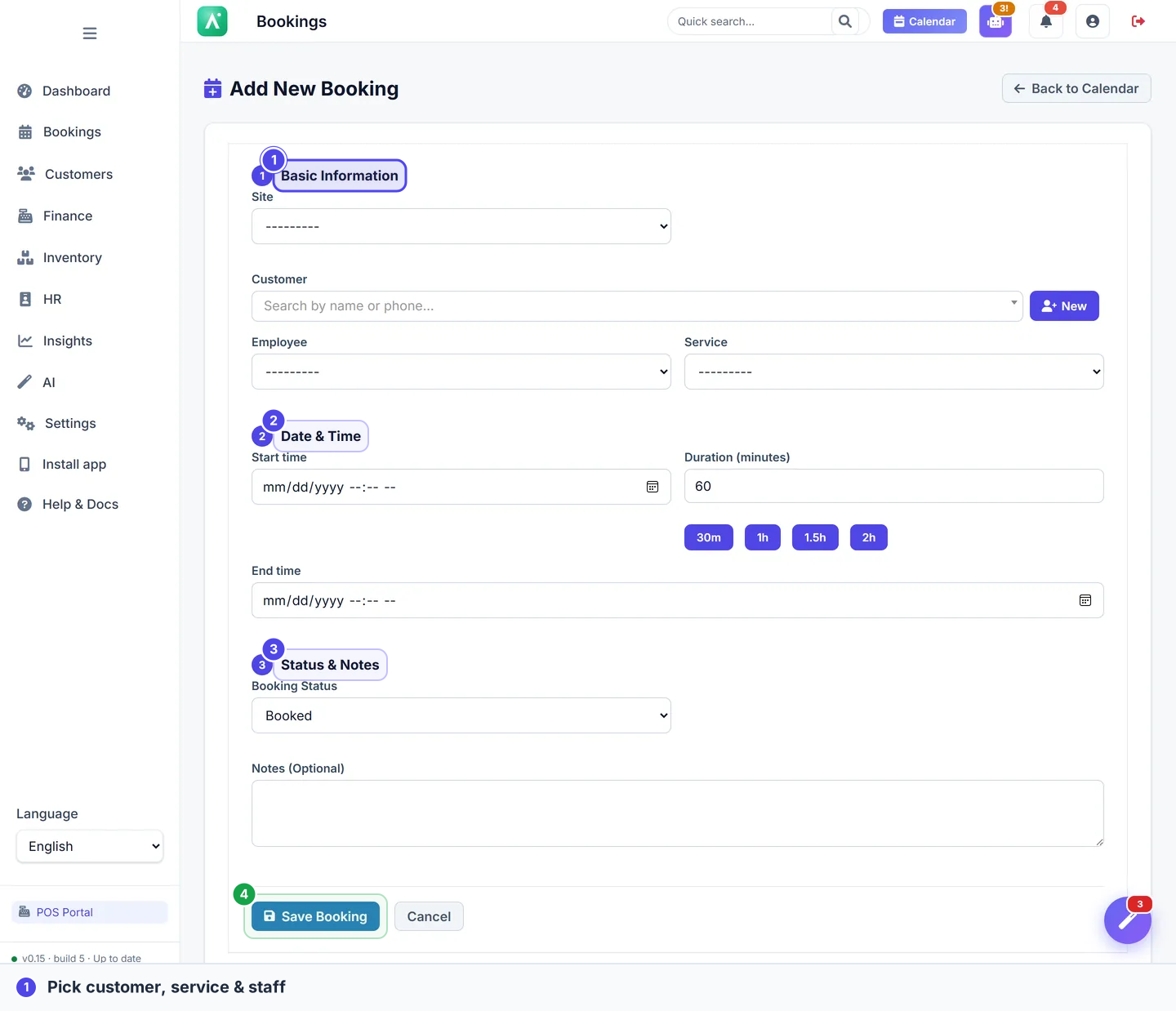
The calendar is your business's day at a glance: every booking, every professional, every open slot in one live view. Instead of juggling a paper book or a shared spreadsheet that nobody trusts, you get one screen that updates instantly, stops you from double-booking, and turns a finished appointment into a paid sale in a couple of clicks.
Who can do this
Booking is controlled by granular per-privilege flags on each staff member's account, not by fixed role names. A domain manager (full access) can always do everything below; everyone else needs the specific privilege.
| Action | Privilege required |
|---|---|
| Create any appointment | can_add_booking (manager always) |
| Create an appointment for another professional | can_view_site_schedule (manager always) — otherwise you can only book your own column |
| Edit an existing appointment | can_edit_booking (manager always) |
| Drag to reschedule (time only) | can_drag_appointments and can_edit_booking (manager always) |
| Reassign by dragging to another professional's column | can_view_site_schedule (manager always), on top of the drag privileges |
| Lock a customer to one professional | Manager only |
A booking is always scoped to a site you can see. Managers see all sites; everyone else sees the sites their employee record belongs to, plus any sites explicitly granted to them. See Switching site & organization.
Reading the calendar
Open Appointments (or Calendar) from the sidebar. The day is laid out with one column per staff member and time running down the side. Time slots follow your site's opening hours, so the grid only shows the hours you actually work.
If you run more than one location, the calendar shows the site you're currently viewing. Use the site switcher to change locations — see Switching site & organization.
Closed days. On a site public holiday the calendar replaces the grid with a closed panel naming the holiday, and no slots are offered anywhere — staff calendar, AI agent, or public online booking. An exceptional closure blocks the customer-facing booking channels (AI agent, flows, online booking) for its dates, while staff can still book on the calendar deliberately. See Closed days: closures and public holidays.
Who appears as a column
A staff member gets a column when they are assigned to the site you're viewing and have "Visible in booking calendar" enabled — a per-employee checkbox on the employee form, on by default for everyone, with the help text "Show this employee in the booking calendar with their availability. Turn off for managers or staff who don't take appointments."
Turn it off for owners or managers who don't take bookings. A hidden employee disappears from the calendar columns (including the staff portal calendar), from the employee pickers (such as the new-appointment modal), and from all availability and capacity math — fill rate, daily occupancy, and even the AI booking agent's suggested slots. Their existing appointments are untouched and stay visible in the bookings list.
An employee can also exist with no site assigned — the site-assignment step when adding an employee is optional. A site-less employee simply appears on no site's calendar until a site is assigned by editing their record.
Create an appointment
- Click an empty slot in the column of the professional who'll do the work (or use the New appointment button).
- Pick the customer: start typing the name (or phone) to search. As you type, matching customers appear in a dropdown — click one to attach it.
- If nobody matches, the dropdown shows "No match — a new customer will be created". You don't have to stop and create a customer first: just leave the typed name in place. When you save, Apolaris AI creates the customer automatically from the name and phone you entered.
- Choose the service.
- Confirm the staff member, date, and time (the slot you clicked is pre-filled).
- Save. The appointment appears immediately on the calendar.
No email needed for a walk-in. The customer is created from the typed name and phone; you can fill in email and other details later from Customers.
The calendar has no separate "add customer" button — new customers are created on save from what you typed, not from a pop-up form. (The standalone quick-create form lives on the legacy new-booking page and in the staff portal, not here.)
Who can book for whom
- A provider without
can_view_site_schedulecan only create appointments in their own column. Trying to book another professional's slot is rejected with "You can only create appointments for yourself." - A receptionist (
can_view_site_schedule) or a manager can book any professional at the sites they can see.
Appointment statuses
Each appointment carries a status so everyone knows where it stands:
- Booked — scheduled, not yet confirmed.
- Confirmed — the customer confirmed they're coming.
- In progress — the service is happening now.
- Completed — the service is finished.
- Cancelled — called off.
- No-show — the customer didn't turn up.
Keeping statuses current feeds your reporting and helps you tackle no-shows — see Reduce no-shows.
A Completed or No-show appointment that is in the past and has no recorded sale is flagged as a missing sale — a prompt to ring up the work (or, for a no-show, decide whether anything is owed). See the sale reminder below and Sales & point of sale.
Move and reassign with drag-and-drop
To reschedule, drag an appointment to a new time in the same professional's column — only the start time moves and the original duration is kept. To reassign it to a different professional, drag the card onto another staff member's column.
These are two different permissions:
- Time-only reschedule (drag within a column) requires
can_drag_appointmentsandcan_edit_booking. Managers always can. - Reassigning to another professional (drag across columns) additionally requires
can_view_site_schedule(or manager). A provider who hascan_drag_appointmentsbut notcan_view_site_schedulecan move appointments around within their own column but cannot drop them onto anyone else's — those drops stay locked to their column.
The calendar protects you while you do this. A drag re-runs the same guards as creating a booking and is blocked when:
- Double-booking — the target professional already has an active appointment in that slot.
- Approved leave — a whole-day leave blocks the entire day; an hourly (partial-day) leave blocks only the hours it covers, so the rest of that day stays bookable.
- Meal / break — the slot falls on the staffer's configured break period (e.g. Lunch).
- Locked customer — the customer is locked to a specific professional (see below).
A Completed, Cancelled, or No-show appointment — or any appointment that already has a sale — can no longer be dragged or rescheduled at all. The card is locked with "This appointment can no longer be rescheduled." This deliberately prevents moving a closed or paid visit, which would orphan the recorded revenue. To change a paid visit, work from the sale instead.
Customer locked to a professional
A manager can lock a customer to one specific staff member (the "Locked to professional" setting on the customer record — manager only; a privilege admin who manages users still cannot see this control). When a customer is locked, the lock is enforced everywhere — the calendar, the new-booking form, the staff portal, and the REST API — and it does more than just block a change:
- On create, the lock overrides whichever professional was picked: the appointment is forced onto the assigned staffer.
- A provider who can only book their own column cannot book a customer who is locked to someone else at all — the attempt is rejected ("This customer can only be attended by …").
- On drag-reassign, the appointment cannot be dropped onto anyone but the locked professional.
See Customers for how managers set and clear the lock.
After the appointment: the sale reminder
Once an appointment passes its expected end time without a recorded sale, the serving employee is reminded to record it. The reminder is sent once per appointment (it won't nag repeatedly), and a Completed or No-show booking with no sale keeps showing as a missing sale until one is recorded or the status is corrected.
Record the sale promptly: it's the moment a completed appointment becomes revenue. A sale also touches inventory, loyalty, and your analytics — see how it all connects in Sales & point of sale.
Turn a completed appointment into a sale
Once an appointment is Completed, convert it straight to a sale to ring up the service and any extras — no re-typing. Continue at Sales & point of sale.
Converting a Completed appointment to a sale also locks it from rescheduling (a booking with a sale can no longer be moved). Make sure the time and professional are right before you ring it up.
Tips
- Confirm appointments the day before to cut down on no-shows.
- Use the per-staff columns to balance the workload across your team at a glance.
- If a drag is rejected for "leave" or "break", check the staffer's time-off and schedule — the calendar is protecting their approved time.
Related: From walk-in to paid · Open up for the day · Customers · Sales & point of sale