Customer Journeys
proDesign, simulate and run automated multi-channel communication flows across the whole customer lifecycle — reminders, confirmations, feedback, payments and win-back — over email, SMS, WhatsApp and real phone calls, with consent, quiet hours and cost tracking handled for you.
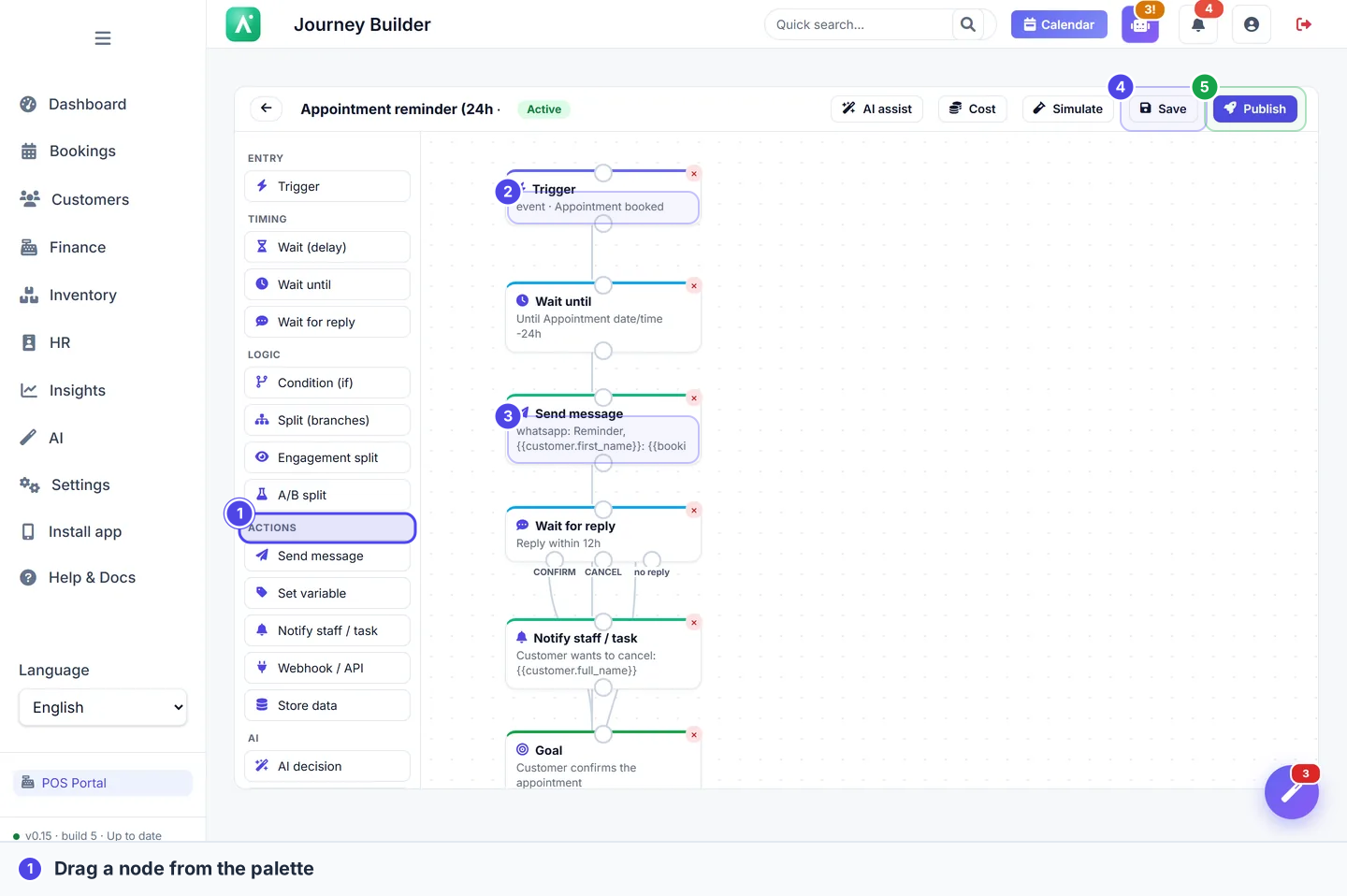
Customer Journeys is a visual builder and an automation engine for every message your business sends customers across their lifecycle — from the first booking to win-back. You draw a flow once as a diagram of connected boxes (a journey), publish it, and the platform enrols customers automatically when the right thing happens — an appointment is booked, a payment lands, a customer goes quiet — and walks each one through the steps you designed: waits, conditions, branches, AI decisions and messages. Consent, quiet hours, frequency caps, channel fall-back and cost tracking are handled for you.
You'll find it under Customers → Customer Journeys in the sidebar.
Customer Journeys is a module your Apolaris contact enables per organization. Sending also self-gates: nothing leaves the building until a journey is published and the channel it uses is configured. Drafts, simulations and test runs send nothing — so you can build, preview and test in full safety first.
Where you work — the 14 screens
The module is a small workspace of connected screens. You rarely need all of them at once, but it helps to know what each is for.
| Screen | What it's for |
|---|---|
| Journeys | The list of every journey with live counts (active runs, sent, conversions); create, edit, pause, archive. |
| Builder | The visual canvas where you drag nodes and connect them. The heart of the module. |
| Template Gallery | 26 ready-made journeys grouped by lifecycle stage — one click to start from a proven pattern. |
| AI Generator | Describe a journey in plain language; AI builds the whole graph for you to edit. |
| Message Templates | Reusable message content with merge fields and per-language variants. |
| Channels & Providers | Route each channel (email/SMS/WhatsApp/voice) to a provider, set fall-back, send a test. |
| Consent & Opt-out | Every customer's per-channel, per-topic consent ledger. |
| Analytics | Sent, delivered, replies, in-progress runs and conversions over time. |
| Cost Dashboard | Estimated spend by channel, provider and journey. |
| Delivery Logs | Every individual message and its live status. |
| Journey detail | One journey's funnel, recent enrolments and version history. |
| Run timeline | A step-by-step trace of one customer's path through a journey. |
| Simulation | Dry-run a journey on the screen — no messages sent. |
| Settings | Quiet hours, frequency caps and the default A/B hold-out. |
Core concepts
A few ideas underpin everything else:
- Journey — the named flow you design. It owns a chain of versions.
- Version — an immutable snapshot of the graph. Publishing freezes the current draft as the new active version and starts enrolling. Customers already mid-journey keep running the version they started on, so editing a live journey never disrupts anyone already in it.
- Run — one customer's trip through one version. A run moves from node to node, can wait, and ends at a Goal or Exit.
- Step — one node executed within a run (recorded for the run timeline).
- Reentry policy — whether a customer can enter the same journey again: once ever, once while a run is active (re-enter only after the previous run ends), or always.
- Throttle — an optional minimum gap between enrolments, so a noisy trigger can't enrol the same customer repeatedly.
A journey is capped at 40 nodes, must have exactly one trigger, and must be able to reach an exit or goal from the trigger. The builder validates this when you save, so you can't publish an unreachable or runaway flow.
Triggers — the full catalogue
Every journey starts from exactly one trigger. There are four kinds:
Event triggers (instant)
These fire the moment something happens in the platform, from a live database signal:
- Appointments — booked, confirmed, completed, cancelled, no-show.
- Sales — recorded, paid, payment pending, payment mismatch (a suspicious amount), refunded.
- Customers — new customer created.
- Loyalty — reward earned.
- Voice calls — a call's recorded outcome: answered, booked (a booking was made on the call), no answer, voicemail, failed, opted out. The result of one journey's call can start another — for example, no answer enrols the customer into a WhatsApp follow-up.
Scheduled triggers (the sweep)
These run from a scheduled sweep rather than an instant signal:
- Birthday, anniversary, and lapsed / inactive customer sweeps.
Scheduled triggers (and appointment rescheduled) are evaluated by the background sweep, not the instant signal path — so they fire on the sweep's cadence, not the exact second. Plan "X days before" timing around that.
Manual & segment triggers
- Manual — you enrol a single customer yourself (handy for testing with a real person).
- Segment — you enrol a filtered list in one action (e.g. everyone who visited in the last 90 days).
Entry filter
Any trigger can carry an optional entry filter — one or more field / operator / value rules, matched with all or any — so only the customers you want enter. Only VIPs, only this service, only sales over $50: the filter is checked at enrolment, before the first node runs.
The node reference
A journey is a graph of nodes (boxes) joined by edges (arrows). Here is every node type and what it does.
| Group | Node | What it does |
|---|---|---|
| Entry | Trigger | The single event/schedule/manual/segment start (above). |
| Timing | Wait (delay) | Pause a fixed amount — seconds, minutes, hours or days. |
| Wait until | Pause until a date anchor with an hour offset (e.g. 24 hours before the appointment). | |
| Wait for reply | Pause until the customer replies on a channel, or a timeout passes. | |
| Logic | Condition | Branch Yes / No on one field. |
| Split (multi-branch) | Route to the first matching rule, top to bottom, with an automatic otherwise branch. | |
| Engagement split | Branch on whether an earlier message was delivered / opened / clicked / replied. | |
| A/B split | Randomly divide customers between weighted variants, with an optional hold-out control. | |
| Actions | Send message | Send on a channel, with merge fields, a consent topic and an optional fall-back channel. |
| Notify staff / task | Raise an in-app notification (which pushes to staff devices) for managers, site staff, or the customer's assigned staff member. | |
| Set data | Store a value into the run's variables for later branches/messages. | |
| Update profile | Write onto the customer record — append a note, add loyalty points, or set a custom attribute. | |
| Webhook | Call an external system (GET/POST/PUT), capture the reply, and branch on success / failure. | |
| AI | AI decision | Let AI pick the branch for each customer at run time, from options you list. |
| AI conversation | A goal-directed, multi-turn AI chat with the customer — on a messaging channel, or over a real phone call — that branches on how it ends (goal met / ended / no reply). | |
| End | Goal | Mark the conversion the journey is driving; reaching it counts the customer as converted. |
| Exit | End the journey for that customer. |
Send message
The workhorse. Pick a channel, write the message (using {{merge fields}} — see below), and choose a consent topic (so the engine knows whether the message is transactional or marketing). Optionally name a fall-back channel: if the first channel can't deliver, the engine retries on the next one — WhatsApp → SMS → email is automatic, up to three hops. You don't set a recipient: the engine always sends to the customer's own email or phone from their record.
Condition
Pick the field to test from a dropdown of real fields — customer is VIP, number of visits, appointment status, payment status, and many more — so you never have to memorise a field name. The value box adapts to the field (a Yes/No, a dropdown of statuses, or a number). The first arrow you draw out of a condition is the Yes path; the second is No.
Split (the multi-branch node)
When you need more than two ways out, use Split. Each branch carries its own condition rule (field / operator / value) and a label you choose. At run time the engine evaluates the rules top to bottom and takes the first that matches — and if none match, the customer leaves by the implicit "otherwise" branch. Order your rules from most specific to most general.
Because Split is first-match-wins, put your narrowest rule first (e.g. spend ≥ $200 before spend ≥ $50). The automatic otherwise output means a customer is never stuck with nowhere to go.
Engagement split
Branch on how the customer reacted to an earlier message: delivered, opened, clicked or replied. Point it at the send node you care about, and route each outcome differently — e.g. clicked → send the offer; didn't open → try another channel.
A/B split
Randomly divide customers between weighted variants to test what works, with an optional hold-out control percentage that receives nothing (so you can measure lift). Assignment is deterministic per run (a customer always lands in the same arm if re-evaluated), and the builder shows a live percentage preview as you adjust the weights. Connect one outgoing arrow per variant.
Wait for reply
Pause the run until the customer answers on a channel. You set the channel, a timeout, and the words you're waiting for — each expected word/phrase is its own branch (e.g. CONFIRM, CANCEL), plus a timeout branch for "no reply in time". This is what powers "reply CONFIRM or CANCEL" reminders.
Replying STOP / BAJA opts the customer out of that channel; START / ALTA opts them back in. These keyword opt-outs are honoured everywhere, in English, Spanish and French — independently of any wait-for-reply words you define.
Set data & Update profile
- Set data stores a value into the run's working variables, readable later as
{{context.<name>}}in conditions and messages. - Update profile writes onto the customer record itself: append a note, add loyalty points, or store a custom attribute (e.g. a
feedback_scoreor acampaigntag). Custom attributes appear on the customer and become available as merge fields and as fields you can branch on in later conditions — so a journey can create new, reusable data about a customer.
Notify staff / task
Raise an in-app notification (which also pushes to staff devices, and is recorded in the activity log) to managers, the appointment's site staff, or the customer's assigned staff member, at the priority you choose. Use it to escalate — a VIP just no-showed, a low feedback score came in — without sending the customer anything.
Webhook
Call an external system. Choose the method (GET / POST / PUT) and set JSON headers and a body (merge fields allowed). The node then captures the reply into the run under a name you choose ("Store response as", default response), so later steps can use the returned data — {{context.response.field}} in a message, or a condition on context.response.tier, context.response_status, or context.response_ok. It has two outgoing branches — one for success and one for failure — and a Test button that previews the live response and lists the fields you can copy. That response-capture is what makes a GET useful: fetch data, then decide and message on it.
The webhook node has an SSRF guard: it refuses to call private, loopback or link-local addresses (e.g. 127.0.0.1, 169.254.x.x, internal ranges). Point it at a real public endpoint.
AI decision
Let AI choose which branch to follow for each customer, from the options you list, based on that customer's data. Use it where a rule is hard to write but a human would "just know" the best next step.
AI conversation — chat or a real phone call
Where AI decision picks a branch silently, AI conversation actually talks to the customer. Give it a goal ("chat to confirm or cancel their appointment and note any preference") and tick the tools it may use; the AI holds a multi-turn conversation toward that goal, then branches on how it ended — goal met, ended, or no reply.
Set its channel to Voice call and the same node runs over a real phone call: the engine dials the customer from your organization's own number, your AI voice agent speaks with them, and the journey's objective drives the call. The ticked tools decide what the agent may do mid-call — looking things up (availability, services) is always allowed, while write actions such as booking or rescheduling are available only when you checked them.
- Attempts and spacing. On voice, the node gains Call attempts (up to 3) and Hours between attempts: a call that goes unanswered, hits voicemail or fails is redialed up to your attempt limit, then takes the no reply branch.
- Outcomes drive the branches. A booking made on the call takes goal met; an answered call that ends without one takes ended — and a customer who opts out on the call also ends the journey, with the opt-out written to the consent ledger; no answer, voicemail or a failed call, once your attempts run out, takes no reply.
- Every call passes the gates. Consent and do-not-call are re-checked before dialing, outbound calling must be enabled for your organization, and an active caller ID must be selected. A call that may not be placed ends that branch with the reason recorded — it never retries into a wall.
Voice needs the voice module with outbound calling enabled (managed by Apolaris) plus an active phone number. Actual call time is metered like any other call and counts on Billing & usage.
Goal & Exit
- Goal marks the conversion the journey is driving — confirms, attends, pays, books again, replies positively. Reaching a goal counts the customer as converted in Analytics.
- Exit simply ends the journey for that customer.
Merge fields
Messages and webhook bodies support {{namespace.field}} tokens that fill in per customer at send time, across these namespaces:
| Namespace | Examples |
|---|---|
customer |
{{customer.first_name}}, {{customer.last_name}}, {{customer.vip}} |
booking |
{{booking.date}}, {{booking.time}}, {{booking.service}}, {{booking.status}} |
sale |
{{sale.amount}}, {{sale.status}} |
site |
{{site.name}}, {{site.phone}} |
org |
{{org.name}} |
context |
anything you stored with Set data or captured from a webhook, e.g. {{context.feedback_score}}, {{context.response.tier}} |
The resolver is safe: an unknown or empty token renders as nothing rather than breaking the message. Still, preview with Simulate to see the real rendered text before you publish.
Channels & providers
Customer Journeys does not hard-wire any single vendor — it uses a provider abstraction layer, so each channel routes to a provider you choose on Channels & Providers:
| Channel | Status | Notes |
|---|---|---|
| Live | Works as soon as your organization's email is configured. | |
| SMS | Live | Uses your SMS provider (the same one as 2FA/notification SMS). OVHcloud SMS is also selectable as an alternative provider once its credentials are supplied. |
| Live | Reuses your connected Contact Center WhatsApp number and templates. | |
| RCS | On the roadmap | Scaffolded; switched on once your Apolaris contact connects a carrier (CPaaS) account. Always carries an SMS fall-back. |
| Voice | Live | Real outbound calls placed by your AI voice agent from your organization's own number. Needs the voice module with outbound calling enabled, plus an active number as your caller ID. Consent and do-not-call are checked before every dial, and actual call time is metered against your plan's minutes — see Billing & usage. |
RCS is not live yet — it is scaffolded and requires carrier setup. Build with email, SMS, WhatsApp and voice today (voice needs its module and a number, per the row above). If a journey references an unconfigured channel, that send falls back or is skipped rather than failing silently.
Three tiers, resolved most-specific-first. A channel's provider can be set at three scopes, and the engine resolves your organization → your domain group → the global platform default:
- Your organization — the in-app Channels & Providers screen.
- Domain group — a default shared by every organization in an HQ group.
- Global default — applies to every organization.
Group and global defaults are configured by Apolaris (the platform operator), not from your organization's screens. Your organization's own setting always wins, so the platform can ship one shared SMS/email account and let individual organizations override only when they need to.
Use Send test on the Channels screen to confirm a channel is wired before you publish a journey that uses it.
Who a message goes to is always resolved from the customer's own record — email to their email address, SMS/WhatsApp to their phone. You never set a recipient per send; the journey chooses only the channel, and each customer's per-channel opt-in is managed on Consent & Opt-out.
Consent, quiet hours & frequency caps
Every send passes three automatic gates — you never wire them per node:
- Consent — a per-customer, per-channel, per-topic ledger (Promotions & offers, Appointment reminders, Feedback & surveys). Transactional messages (confirmations, receipts) are exempt from marketing suppression, but an explicit opt-out is always honoured. Replying STOP/BAJA opts a customer out; START/ALTA opts them back in. Customers can also unsubscribe from a one-click link in any marketing email (see below). Manage it all on Consent & Opt-out.
- Quiet hours — non-transactional messages are held until the window you set in Settings passes, in your organization's time zone.
- Frequency cap — an optional limit on how many marketing messages a customer can receive per window.
The email consent ledger is the same ledger behind the customer-facing email preference center and one-click unsubscribe — see Email & notifications. An unsubscribe there immediately suppresses the matching marketing topics here, with no reconciliation needed.
Designing with AI
AI is woven through the builder, but it never sends on its own — it only helps you build:
- AI Generator — describe a journey in plain language and AI returns the full graph (trigger, timing, messages, conditions, recommended channels) and explains the logic before you save. It validates the result against the allowed node types, events and channels, fixing or rejecting anything invalid. Everything stays editable.
- AI assist — regenerate the graph from a new prompt.
- "Let AI fill this in" — on a single node (a condition, a message, a goal), AI proposes the settings for that node, which you can edit.
- AI decision node — AI picks a branch per customer at run time.
- AI translate — translate a message template into your other platform languages.
- Delivery recommendation — AI suggests the best channel, timing and tone for a message.
AI assist regenerates the whole graph, not just part of it — so use it to start fresh, and use "Let AI fill this in" for a single node. If the AI backend is off or unreachable, the generator falls back to a sensible standard reminder journey, so you always get an editable starting point rather than an error.
The Template Gallery
The fastest way to start. The gallery ships 26 built-in journeys grouped across six lifecycle stages — for example:
- Acquisition / onboarding — welcome new customers, first-visit follow-up.
- Booking lifecycle — appointment reminder, confirm/reschedule, no-show recovery.
- Post-visit — thank-you, feedback request, review ask.
- Retention / loyalty — loyalty reward nudges, milestone celebrations.
- Win-back — lapsed-customer re-engagement.
- Payments — payment-pending nudge, receipt follow-up.
Pick one and it's created as an editable draft — change the wording to your brand, simulate it, then publish.
Creating a journey
Three ways to start — all land in the same Builder:
- From a template. Open Template Gallery, pick one (e.g. Appointment reminder), and it's created as a draft you can adjust.
- With AI. Open AI Generator and describe it, for example:
"Remind customers 24 hours before their appointment, ask them to confirm on WhatsApp, fall back to SMS if there's no reply, then ask for feedback after the visit." AI returns the full journey and explains it; everything is editable.
- From scratch. Click New journey and build it node by node.
In the Builder
- Add a node by clicking it in the left palette, then drag it into position.
- Connect nodes by dragging from a box's bottom dot onto another box's top dot. For a Condition, the first link is Yes, the second No; for Split, A/B and Engagement you connect one arrow per named branch.
- Configure a node by clicking it — the right-hand drawer shows its fields. Messages support merge fields like
{{customer.first_name}},{{booking.date}},{{booking.time}},{{sale.amount}}. - Save keeps a draft; Cost estimates spend per 100 customers; AI assist can regenerate the graph from a prompt.
- Publish (managers) freezes the version, makes the journey active, and starts enrolling.
Try it safely — simulation and test runs
Two complementary ways to check a journey before any real customer is touched:
Interactive simulation
The Simulate button opens an interactive preview that walks a sample customer through the flow on screen — drawn as a phone mockup with the messages appearing as they would in WhatsApp, SMS or email. Use Restart, Next (step through one node at a time) and Play / Pause to watch it run; at every decision node (condition, split, engagement, A/B, wait-for-reply, AI decision) it pauses for you to choose which branch to follow, so you can explore every path.
Simulation is entirely client-side. It sends nothing, writes nothing to the customer record, and calls no webhook — it's a safe preview of the logic and the rendered message text.
Sandboxed test runs
When you want to verify the real engine end-to-end, start a test run against a real customer. A test run executes the actual runner but is sandboxed: every outward side effect is held — no message is sent, no staff notification is raised, no webhook is called, and the customer record is never changed. It still writes inspectable run / step / delivery records, so you can open the Run timeline and confirm exactly which path was taken and what would have been sent. Test runs are clearly marked, excluded from analytics, and can be deleted in one click when you're done.
Use simulation to design and explore branches quickly, then a sandboxed test run to prove the live wiring (triggers, fields, fall-back) before you publish.
Monitoring delivery & cost
Nothing needs reconciling — every figure comes from the same rows the engine writes as it sends.
- Analytics — sent, delivered, delivery rate, replies, in-progress runs and conversions, with a 30-day activity chart and a period selector.
- Cost Dashboard — estimated spend by channel/provider and by journey, using the rates you set per channel — voice calls included.
- Delivery Logs — every message with its provider and live status (queued → sent → delivered → read/clicked/replied, or failed/skipped) and any error. Provider read-receipts update these automatically.
- Journey detail shows each journey's funnel; the Run timeline traces one customer step by step.
Journey voice calls are also metered for real, not just estimated: actual call time counts against your plan's included minutes and appears on Billing & usage, like any other call your voice agent makes.
Automatic delivery — the background runner
Once published, journeys advance on a short schedule (every few minutes). That's what fires the "2 hours before" reminders, applies delays, runs the scheduled-enrolment sweeps (birthday/anniversary/lapsed), performs channel fall-back, and recovers any interrupted run. Your Apolaris contact sets this up; if a "send before the appointment" feels late, ask them to shorten the runner interval.
Connect it to your own systems (REST API)
For developers, journeys are reachable over the REST API under /api/v1/journeys/, plus inbound provider delivery webhooks at /journeys/webhooks/<provider>/ that advance runs as messages are delivered or read.
The journeys REST API is read + enrol only — you can list journeys and enrol customers, but you cannot create, edit or publish a journey over the API (that stays in the builder). It is gated behind the off-by-default Developer API module and uses scoped tokens (journeys:read / journeys:write). Ask your Apolaris contact to enable it.
Who can do what
| Action | Who |
|---|---|
| View journeys, analytics, logs | Managers, or users with View customer journeys |
| Build / edit / enrol / simulate / test-run | Managers, or users with the matching Create / Edit customer journeys privilege |
| Publish / activate, channels & settings | Managers only |
Grant the per-action privileges under Users → privileges → Customer Journeys.
Publishing and activating a journey are manager-only — a non-manager can build and test a journey but cannot make it go live. This is a hard gate, not an approval queue: there is no "submit for review" step, so coordinate with a manager when a journey is ready to launch.
Worked examples
1 — Appointment reminder with confirm / cancel. Appointment booked → Wait until 24 h before → Send WhatsApp "reply CONFIRM or CANCEL" (fall back to SMS) → Wait for reply → CONFIRM reaches the Goal; CANCEL fires Notify staff; no reply in time ends at Exit. Start from the Appointment reminder template, rebrand the wording, simulate one customer, then publish.
2 — No-show win-back, A/B tested. No-show → Wait 2 days → A/B split (50/50 with a 10% hold-out): Variant A sends a "we missed you, here's 15% off" WhatsApp; Variant B sends a plainer email → Engagement split on the offer (clicked → Goal; ignored → one gentle SMS nudge → Exit). Compare conversion by arm in Analytics.
3 — Post-visit feedback that escalates.
Appointment completed → Wait 3 h → Send a feedback ask → Wait for reply → Set data the score → Split: score ≤ 2 → Notify staff (high priority) and Update profile (tag unhappy); score ≥ 4 → Send a review request → Goal. Low scores reach a human; happy customers are asked for a public review.
Related
- Contact Center (CCaaS) — the WhatsApp inbox and number Journeys send from.
- Email & notifications — the branded layout, one-click unsubscribe and preference center that share this consent ledger.
- AI Automation Builder — internal, data-driven automations for managers (a sibling, staff-facing tool).
- Customers · Appointments · Loyalty · REST API