Cameras & AI Vision
proConnect your own cameras with the self-serve site connector, then get AI-read events, alerts, zones, connection health, and staff-presence insights — manager-only.
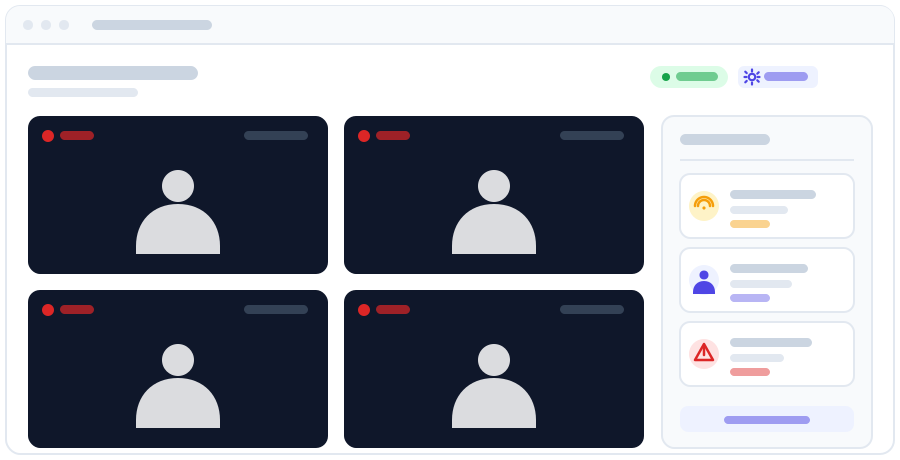
Cameras & AI Vision turns the cameras you already have into an operational sensor for your business. Instead of footage nobody ever rewatches, Apolaris AI reads each scene and produces structured events, alerts, and presence insights, so you get security and live operational awareness in one place rather than juggling a separate DVR app, paper logs, and guesswork.
What it does
- Detects meaningful moments and logs them as events: somebody crossing the doorway, a service starting and finishing, a visit to the register, staff arriving at their station, and configurable alerts — see What the events mean.
- Sends notifications when the events that matter to you happen.
- Corroborates staff attendance with what the camera actually saw, instead of trusting the schedule alone.
- Lets you draw zones on the live image and accept AI-suggested events tailored to each camera's view.
- Shows every camera's health on a dedicated Connection status page, with plain-language fixes you can apply yourself.
Cameras & AI Vision works with the cameras and recorder (DVR/NVR) you already have, and connecting them is self-serve — no technician visit or network changes needed (see Connect your cameras yourself). If you don't see Cameras in the sidebar, the module isn't enabled for your organization — see Modules or contact support.
Who can do this
Every Cameras screen is manager-only. This is the domain-manager role (is_manager), not a privilege you can grant à la carte — there is no "can manage cameras" toggle to switch on for an individual employee. A non-manager who opens a configuration page is turned away with the message "You need manager access to configure cameras." (Apolaris platform operators can also reach it, but that is an Apolaris-side capability, not something you assign.)
Cameras is its own section in the sidebar, split into two groups:
| Screen | Who can use it |
|---|---|
| Monitoring — Watch, Site State, Connection status, Events, Arrivals | Domain managers only |
| Camera Configuration — Cameras & Sites, Detection & AI | Domain managers only |
The cameras a manager can see and configure follow normal site scoping: a manager sees every site in the organization, so they can configure cameras across all locations. Cameras whose site isn't visible to the current user appear under an Unassigned group.
Because every screen is manager-gated, general front-desk staff cannot view the event feed today. If you want a staffer to monitor cameras, they need the manager role. See Employees, users & permissions for what that role grants.
Connect your cameras yourself
Getting cameras online used to be part of Apolaris-side onboarding. It is now self-serve: the bridge between your recorder (DVR/NVR) and Apolaris is a small site connector you run on one always-on PC at the location.
- Get the connector package for your site. Apolaris prepares a ready-to-run installer built specifically for each site — contact support to request it. It comes in two flavors: a Windows package (unzip it and double-click the installer inside, accepting the administrator prompt) and a Linux script (installs the connector as a system service).
- Run it on a PC at the site. Any small PC on the same network as the recorder will do — wired beats Wi-Fi. The installer sets everything up, disables automatic sleep on the machine, and the connector comes online within about a minute.
- No port-forwarding, ever. The connector dials out to Apolaris over a secure outbound connection. You never open ports, reconfigure the router, or expose the recorder to the internet.
- Bring the recorder's cameras online in one pass. Once the connector is up, every camera plugged into the DVR/NVR can be onboarded in one go — each channel is checked and added remotely with Apolaris support, and appears in your camera list ready to configure.
The install is built to be safe to hand to a non-technical person at the site:
- The connector software is installed from signed, verified sources.
- The package carries a single-use claim code instead of a permanent credential. The first install claims it, the code expires after 24 hours, and a copied or forwarded package cannot connect later. To reinstall, request a fresh package — and delete the old folder when you're done.
The connector PC must stay powered on and awake — it is the bridge between the recorder and the platform. A closed laptop lid or a machine that went to sleep is the single most common reason cameras go offline.
Connection status
Cameras → Connection status answers "are my cameras actually working?" without calling anyone. The header shows either All cameras connected or how many cameras need attention, plus a checked … ago stamp so you know how fresh the picture is.
Each site card shows how many of its cameras are connected, the recorder they connect through, and when that state was last confirmed. Every camera row carries its own state — Connected, No connection, Processing server down, Not scheduled, Paused, Starting, or Not an IP camera — along with when it last produced activity.
The fixes are self-service too:
- When a whole location is unreachable, its card flips to Site offline with a What to check at this location checklist: the connector PC must be powered on and awake (the most common cause), on the same network as the recorder (cable preferred over Wi-Fi), the recorder itself must be on with its cameras plugged in, and after a power cut or router change, restarting the connector PC is enough — it reconnects on its own. Only after all of that does the page ask you to contact support.
- A camera with a specific problem shows a short note under its row about what to do.
- If the monitoring service itself hasn't reported in for a while, the page says so plainly — "This page may be out of date" — instead of presenting stale states as live truth.
Availability history
Below the live cards, Availability history keeps the past: for each site and each camera, how much of the opening hours actually had video, per Day, Week or Month (the arrows move back and forward in time, Today returns to now). It exists to answer the question the Services page raises a week later — "why were so few services captured on Tuesday?" — because the most common reason is not the AI but the connector PC at the site having been switched off or left asleep, and until now nothing remembered that once the video was back.
- In the Week and Month views every cell is one day and shows the share of that day's opening hours with video: green from 90%, amber from 50%, red below. Hover a cell for the exact figures, including how long there was no video and how long the platform could not tell.
- The Day view shows one cell per hour: green for video, red for no video, grey when the platform could not tell, pale for hours the site was closed or the camera was paused. The All cameras row rolls the site up — one camera with video proves the connector PC was on, so only an hour with no video on every camera is a site outage.
- Red always means "no video reached the platform from the site": cameras, recorder or connector PC. Time the platform could not judge (our own processing server down, a worker still starting) is reported beside the percentage as Could not tell and is never counted against the site — nothing at the site needs checking for it.
- A day the site was closed shows as closed, a camera paused by you as paused, and a period nobody was monitoring as a dashed No data cell — the page never invents a state for a gap.
- When appointments fell into hours with no video, the site card counts them — N appointment(s) during hours with no video — and links to Service performance filtered to those days, so you can see exactly which bookings could not be observed, and why.
The figures come from the same check the connection alerts use, taken every few minutes: percentages are exact, durations are rounded to that cadence.
Add and configure a camera
- Open Cameras → Cameras & Sites (in the sidebar's Camera Configuration group). Your cameras are listed grouped by site, each with an at-a-glance summary (events in the last 30 days, zones, event types, alerts on or off).
- Click Add camera (or Add camera here inside a site's group to pre-select that site). Cameras are configured per site.
- Work through the form's five short steps:
- Identity & site — a clear name (for example, "Front desk" or "Station 3"), the site it watches, and an optional location label.
- Source & integration — the source type and stream URL. IP/RTSP cameras are analyzed continuously; a browser webcam runs in-page; "Manual" accepts events from an external recorder. The stream-URL field carries a built-in RTSP checklist of field-tested tips (which recorder stream to use, encoding settings, recorder-user pitfalls) — read it before pasting a URL; it prevents the classic mistakes.
- Events to capture — tick the event types this camera should record. Types tagged auto-detected are produced by the AI, and once the camera has been running, the form highlights the types it has already seen — so the suggestions reflect what your camera actually observes.
- Sensitivity & tolerance — per-camera Detection sensitivity (0–1), Minimum dwell (seconds) (ignore people who stay less — filters out passers-by), and Detection frame rate (fps). Leave them blank to follow your organization-wide defaults (see Detection settings). You can also enable Flag out-of-the-ordinary activity — an advisory-only "anything unusual?" check that never accuses, only informs.
- Alerts & notifications — choose which events raise an alert (see Alerts and attendance).
- Click Save camera. The camera begins producing events; if nothing shows up within a few minutes, check Connection status.
Camera limit
Each organization has a camera allowance — 4 cameras by default, counted across all your sites. Every live camera consumes real processing capacity on the platform, so the allowance grows deliberately rather than automatically: when you reach it, adding another camera is blocked with a "Camera limit reached" message, and — as the message itself says — a platform administrator can raise it. Contact support if you need more cameras.
Draw zones and use AI-suggested events
Zones tell the AI who is who in the frame: a staff zone (with an employee assigned) lets the system match seated customers to that employee's booking, a client zone marks customer chairs, an entrance zone marks the doorway and counts people in and out by itself, and an ignore zone (over a window or a mirror, never over the doorway) stops it counting reflections.
The entrance zone needs nothing else drawn around it. Set Inside is to the side where the business is located before saving: above, below, left, or right of the doorway in the image. The arrow must point into the room. Older automatic settings need review because the middle of the image may show the street, reversing entries and exits. AI setup supplies a direction only when the image makes it clear. Check one person entering and one leaving after setup. Several cameras that see the same physical door share one Shared entrance label so a passage is counted once.
Who owns a chair is learned. You can leave a staff zone's employee empty: every hour the system credits each chair-hold the cameras saw to the appointment that fits it best, and once one technician clearly accounts for the chair (at least six credited holds, most of them hers, twice the runner-up's) the zone is assigned to her and the editor says so under the employee field — Owner learned from the cameras. A chair that several technicians use is left without an owner on purpose, because a fixed owner would credit the wrong person for most of its holds; each of its appointments is then matched from the diary instead. An owner you set yourself is never changed by the system; if the cameras see somebody else there far more often, the editor tells you and suggests leaving the field empty.
No service time is lost to a wrong setup. An owner is a strong hint, not a wall: when the owner's appointment barely overlaps a chair-hold and a colleague's appointment covers it, the appointments that fit are matched instead — one fitting appointment is taken directly, several go to the AI tie-breaker, and if the tie-breaker cannot decide the owner's match stands at a lower confidence rather than being dropped. A hold with no appointment of the owner's is no longer written off as unbooked work when a colleague's appointment covers it. The vision model helps the tie-breaker: when a chair is held under several appointments, the camera is asked what kind of service is visibly underway (manicure, pedicure, other) and that reading is handed to the tie-breaker with the candidates, so a pedicure seen on camera goes to the pedicure appointment. Every learned assignment, and each keep or undo, is listed under Chair owners in the Cameras section; the digest reaches the managers of the site once it closes for the day.
- From a camera's configuration, open Define zones (each camera row in Cameras & Sites also has a Zones shortcut).
- Draw directly on the live image: click New zone, click points around the area (at least 3), then Finish shape. Draw around the floor area where people stand or sit.
- Set each zone's role — and, for a staff zone, the employee — then click Save zones.
- Once the system has learned this camera's typical activity, a Load AI suggestions button appears with AI-proposed zones for that view. Review, drag, relabel, or delete each one, then save. Until then, the editor tells you suggestions will appear after it learns from the footage, and asks you to draw manually meanwhile (a staff zone, one client chair per station, the entrance).
Keep zones tight. A precise checkout zone gives you cleaner "payment" events than one that covers half the room.
Detection settings
Organization-wide detection defaults live in Cameras → Detection & AI — they apply to every camera, and each camera's own page can override them (the sensitivity, dwell, and frame-rate fields above). Managers can adjust the master Run AI object detection for this organization switch, the default Detection sensitivity (0–1), and the default Detection frame rate (fps) themselves; the page's more advanced options are best changed with support's guidance.
The Recording policy section on the same page is reference-only: how clips are captured and retained is configured by your platform administrator and shown there so you know what applies.
Read the event feed
The Events page is the running log of what each camera saw, with the event type, camera, and time. Like the rest of the Cameras module, it is manager-only.
- Open Cameras → Events. The header KPIs summarize the day: Visitors today, Currently inside, Avg. time spent, Payments seen, and Attendance events.
- Scan the Live event feed — filter by event type or camera, or search. Click an event to review the moment it captured.
- Need to log something the AI can't see? Use Register event manually on the same page.
For live viewing, Watch shows your cameras as a grid, and Site State condenses each location's recent activity into a health card over today, 7 days, or 30 days.
This is where the operational payoff shows up: you can see whether the front door is busy, whether services are actually starting on time, and whether checkouts are happening, all without standing at the front desk.
What the events mean
A camera reports what it can honestly see. Everything that needs a name — which customer, which service, which employee — comes from your diary and your zones, never from the picture.
| Event | What it means |
|---|---|
| Customer entered / left | Somebody crossed a doorway. Only a camera with an entrance zone reports these; a room camera is not a door and no longer pretends to be one. |
| Service started | A client chair has been occupied continuously for longer than your service detection tolerance. Named from the diary where a booking exists: "Service started: Gelish for Ana — Mesa 1". |
| Service finished | That chair has been empty long enough to be genuinely finished, not just someone stepping to the mirror. Carries the duration. |
| At the register | Somebody stood at a register zone. Deliberately not recorded as a payment: standing at the till is not evidence that money changed hands. |
| Employee attendance | Somebody who arrived and then settled at a workbench. If the workbench is assigned to an employee, the entry names them — "Yaz returned to Mesa de trabajo". |
| Alert | Something worth a glance: a person who is not staff standing in the staff area, or a till-area observation. |
Earlier versions logged a customer arrival for every person every camera could see, so one client sitting in a chair produced three "customer entered" rows from three different cameras and the day's visitor count ran into the hundreds. Arrivals now come only from doorways, and rooms report services instead.
Service detection tolerance
Cameras → Detection & AI → Service detection tolerance (seconds) decides how long somebody must stay at a station before it counts as a service.
This matters more than it sounds. People move constantly during a service — to the mirror, to a trolley, to the till and back — so if the system reacted to every movement it would report a service every few seconds. Requiring the chair to be held is what separates a real service from somebody shifting in a seat.
The default is 240 seconds (4 minutes), roughly the shortest real service in a nail salon. Lower it if your quickest service is genuinely shorter; raise it if the feed shows services that never happened. A brief absence does not end a service, for the same reason.
Saving this restarts your cameras so it takes effect immediately.
Who is inside, and for how long
The Currently inside figure counts doorway crossings — arrivals minus departures since the site opened — rather than however many people a detector can see at this instant. That distinction is the whole point: somebody who turns their back, is hidden behind a colleague, or briefly drops below the detector's confidence does not leave the building, so they must not leave the count.
- The count resets each business day, so a missed crossing cannot accumulate forever.
- It never goes negative: a departure with no arrival is somebody who was already inside when counting started.
- Where a crossing has been attributed to a person, the count is split into staff and customers. Crossings nobody has attributed yet are counted in the total and shown separately — the system will not guess whether an unnamed person is staff.
If a doorway sees people arriving but rarely leaving, the occupancy figure is withheld rather than shown, because a door that only watches one direction would otherwise report a room that fills up all day and never empties.
Arrivals & departures
Cameras → Arrivals lists each doorway crossing with a few encrypted frames, for a human to attribute. The camera records when; you decide who.
- Suggestions come from the day's rota and bookings — never from the person's appearance.
- Snapshots are encrypted at rest and stop being readable after 30 days, whether or not the clean-up job has run.
- Attributing a crossing to a member of staff offers to clock them in or out at the moment the camera saw them, so you are not re-typing a time you already have. It is optional per crossing, and never happens for a customer.
Conduct patterns
Some observations are worth an owner's attention but must never be treated as a verdict. Two families exist, and they make different promises:
- Till-area observations describe what a camera saw and are never joined to a person. Vision cannot tell you who handled cash, so it does not imply it.
- Unbooked service does name an employee — because the identification does not come from the picture. A workbench belongs to somebody in your zone editor, and the diary says whether a booking existed.
Both need repetition before they are called a pattern: at least three occurrences across at least two separate days. One occurrence is a colleague covering a break, a walk-in squeezed in, or a booking nobody moved. Five in one afternoon is a busy afternoon. The same thing on three days is worth asking about.
These depend entirely on your zones being right. Assign each client chair and workbench to the employee who works it, or an alarm can name the wrong person. A chair whose owner is unknown is skipped rather than guessed at.
The live board: who is in a chair right now
Under Cameras → Site State, each site shows a Right now block: how many people are inside, and a row per workbench in use.
Where the numbers come from matters, because the two halves answer different questions and are trustworthy in different ways.
- Inside is the doorway ledger described in Who is inside.
- The board joins the station to the diary. The chair belongs to an employee, so the chair names the employee; the diary knows which service that employee has running and for whom. Nobody is identified by appearance at any point.
- Elapsed counts from the doorway crossing when one was attributed — how long the customer has been in the building, which is what an owner actually asks. When no crossing was attributed it counts from the chair instead, and the row is marked, because a number whose meaning changes silently is worse than two honest ones.
- A chair in use with nothing in the diary is shown as no booking. It is usually a walk-in nobody entered, and it is worth knowing either way.
Two bookings on one chair
An employee sometimes has two bookings covering the same moment — a walk-in squeezed in beside a booked slot, or a double entry nobody tidied. The camera cannot tell which person is in the chair, and putting a real customer's name against the wrong service is worse than admitting the ambiguity, so the row offers both and you pick.
Picking only reorders that chair's candidates. Nothing is deleted, the other booking stays on screen, and picking again undoes it. The choice lasts as long as the bookings do — it cannot follow the chair into tomorrow's shift.
Services observed
Every service the cameras watch from start to finish is kept as a row and reported in Analytics → Data Explorer under Services observed.
This is deliberately a second measurement, next to Service duration & drift. That one learns from completed bookings: what you scheduled and then closed. This one is when the chair was actually occupied. They disagree in the useful direction — a booking closed at its scheduled end says nothing about the customer who sat for another forty minutes, and that overrun is what eats the next slot.
- Average length, Longest and Chair hours measure the chair, not the appointment.
- Booked for is copied when the row is written, so repricing a service next month cannot rewrite what last month's overruns were measured against.
- With nothing booked counts chairs in use with no appointment. Treat it as a number to look into, never as an accusation about a person.
A service is a workbench held continuously, with a short absence allowed — see Service detection tolerance. Leaning to a trolley and stepping to the mirror is what having a service done looks like, and none of it ends the session.
Service performance: each booking against the clock
Cameras → Services puts every appointment beside what its chair actually did. Pick a window with the presets or an explicit From/To range, and narrow by site, employee or service.
The row is the appointment, not the observation — including appointments no camera saw. That empty cell matters: it means no camera watched that station, which is a fact about your coverage, not about whether the customer came.
Each row carries:
- Booked — what the diary sold. Copied when the service was measured, so a later price or duration change cannot rewrite it.
- Observed — how long the chair was actually held, added up across every sitting on the appointment. A customer who steps out to take a call and comes back is one appointment measured whole, not two short ones.
- Drift — observed minus booked. Anything within 15% reads as on time.
- Attitude — how the customer looked while that service ran (see below).
- Station — the workbench, from the zone it belongs to.
Above the table, the headline figures always cover the whole window. The Show chips (ran over, finished early, not observed, looked unhappy) narrow the list only, so a filtered table never silently rewrites the numbers it sits under. Camera coverage is the share of appointments with any observation at all — read it before you read the averages.
Two breakdowns follow: by service (which treatments habitually run over their booked length — a scheduling question) and by employee (chair hours and average drift). A group with nothing observed still appears, because a technician invisible to every camera is a finding about the cameras.
No-show, chair busy appears when the diary says nobody came and the chair says somebody did. Both are reported and neither is corrected — which of the two is wrong is a question for whoever was in the room.
The same measurement appears on the appointment itself: open a booking and an Observed on camera panel shows the measured length, the difference against what was booked, and the attitude reading, with a link back to this page.
How customers looked
While a service runs, the scene reader samples how the customers in frame look and picks the closest label from a fixed list — delighted, happy, relaxed, neutral, bored, tired, uncomfortable, anxious, annoyed, sad. The dominant label for the service is shown, grouped three ways:
- At ease — delighted, happy, relaxed.
- Flat — neutral, bored, tired. Usually a waiting or pacing question.
- Unhappy — uncomfortable, anxious, annoyed, sad. Worth looking into.
Read it the way you would read a room, not as a score:
- Nobody is identified by appearance. The reading is of faces in the frame and is never matched to a name; the customer on the row comes from the diary.
- Not read is not "neutral". A chair whose mood was never sampled is left blank on purpose — neutral is a real answer about a face somebody looked at. Emotion reads need Detection & AI switched on, and they are sampled on a cadence, so a short service may have no reading at all.
- The count of readings behind a label is on the chip's tooltip. One reading and forty readings deserve very different amounts of trust, and the label looks identical.
- It measures the service, not the visit: the tally starts when the chair is taken, so twenty bored minutes in reception do not colour the service after.
- It is never a verdict on the employee. One unhappy reading is a moment; the same service or the same hour turning up repeatedly is a pattern.
Ask AI about a clip
On Cameras → Incidents, each saved clip has an Analyze with AI button.
The detector decides in a fraction of a second, from one frame, on hardware it shares with the tracker — and it errs in a specific direction: it calls ordinary movement dangerous. One flagged an employee walking out as pointing aggressively.
So this sends the whole sequence to a stronger vision model, with the time, the zones, the rota and the detector's own claim attached, and asks it to judge that claim. The prompt invites it to reject the alert outright, because a second opinion that only agrees more fluently would be worthless.
- The answer appears beside the original alert, not instead of it. The two disagreeing is the useful state.
- It never dismisses anything and never names anybody. You still decide.
- It runs only when you press the button — running a large model over every false alarm a night produces would cost far more than it is worth.
- Frames expire on the same 30-day schedule as every other snapshot, and the button disappears once they have.
Capture modes and cost
Each camera runs in one of three modes, set on the camera's page or on a schedule:
- Off — configured but not analyzed. Costs nothing, and the interface says paused by you rather than pretending the camera is broken.
- Slow — the low-cost default. Detection about once a second, which still catches every real event.
- Turbo — a much higher frame rate for a smoother live picture and quicker detection, at a real hardware cost.
Turbo's smoothness depends on the machine doing the detection. If that machine also runs other AI work, the live picture will vary with how busy that other work is — that is a hardware allocation question, not a setting.
Alerts and attendance
- Alerts on events: when a notify-enabled event fires, Apolaris AI raises an in-app alert (and an email alert when that channel is enabled for the camera) so you can respond in the moment instead of discovering an issue hours later in recorded footage. Choose alert events per camera in the Alerts & notifications step of the camera form: pick the events, keep In-app notification to managers on, and optionally enable Also send email with extra recipients.
- Camera-corroborated attendance: the system compares scheduled presence against what the camera actually detected, giving you attendance you can trust. Pair this with HR: team, leave & documents and Payroll for time records grounded in reality, not just clock-ins.
Ask the copilot, and read it in your AI reviews
You do not have to open these pages to know what the cameras saw. The AI copilot answers "how were the services yesterday at Centro according to the cameras" or "are the cameras working" from the same evidence shown here — visitors counted at the entrance, services observed at the chairs, bookings the cameras witnessed, alerts, and each camera's connection state — and respects your branch scope. A site that recorded nothing is reported as no camera evidence, never as "no customers".
The same reading feeds the AI reviews for organizations with this module:
- Weekly AI business review (AI page → Your AI this week) gains a What the cameras saw card and camera tiles, and the narrative may point findings at the camera pages.
- AI highlights on the AI page flag cameras that are offline right now and summarise yesterday's camera activity each morning.
- The Camera daily review routine (AI → Automations) reports yesterday per site — visitors, services observed, bookings seen, alerts — and which cameras are dark now. It is only offered to organizations that have the module.
Tips
- Configure cameras one site at a time and confirm each event type appears in the feed before moving on.
- Start with conservative sensitivity, then tighten it after a day of real activity.
- Only enable notify on events you'll actually act on, to avoid alert fatigue.
- Give the connector PC a wired network connection and a power socket nobody switches off — the Connection status page will stay green.
- Combine vision events with the AI Assistant (Copilot) and Analytics & Data Explorer to connect what the cameras see with the rest of your operation.
If the feed is empty or events stop appearing, open Connection status first — it names the camera or site that's down and lists exactly what to check (most often the connector PC has gone to sleep). If everything shows Connected and events still don't arrive, contact support.