Payroll
proGenerate payroll for any cadence, with sales-tier bonuses, untaxed tips, statutory deductions, and exports — pay each entry to recognize it on your reports, and avoid double-counting your P&L.
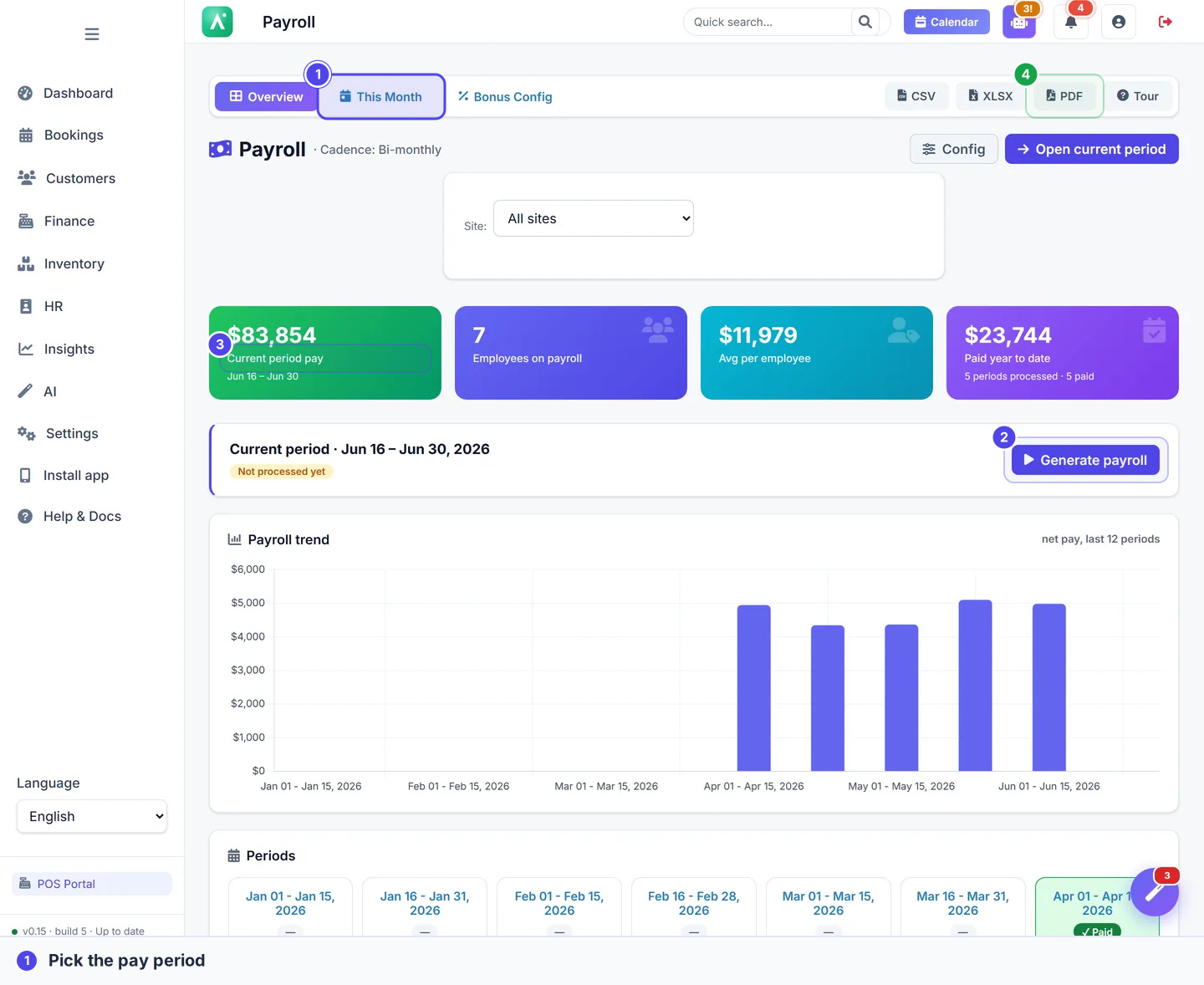
Payroll turns a real pay period of activity into accurate pay for every active team member, with bonuses, tips, unpaid-leave deductions, and statutory (legal) deductions calculated for you. Because it draws straight from the same data as your sales, HR, and appointments, there is no re-typing numbers between a spreadsheet and a separate payroll tool, and far less room for costly mistakes.
Who can do this
Payroll is manager-only. Every payroll screen — the dashboard, the period preview, processing, marking paid, and cancelling — is restricted to domain managers (the is_manager flag). There is no per-privilege flag that opens payroll to a non-manager: a user without is_manager is refused with "Only managers can access payroll." PDF/CSV/XLSX export additionally requires the can_export_reports privilege on top of being a manager.
Site scoping still applies inside payroll. You can filter the dashboard and a run by site, and a manager sees every site in the organization.
What a payroll run includes
Each employee's pay is built from a transparent formula, computed server-side:
gross pay = base salary + overtime + commission + auto bonus + extra bonus
net pay = gross pay − (statutory/legal deductions + unpaid-leave deduction + other deductions) + tips
| Component | Where it comes from |
|---|---|
| Base salary | The employee's HR profile (falls back to their most recent saved entry if zero). |
| Auto bonus | Computed from the employee's own realized sales in the period against the sales-bonus tiers (see below). |
| Tips | The employee's tips from realized sales in the period. Added on top of net pay — paid in full and untaxed. |
| Unpaid-leave deduction | Approved unpaid leave taken inside the period, valued at the employee's day rate. |
| Statutory (legal) deductions | Auto-applied from your country's legal-item configuration. |
Tips are not folded into taxable gross. They are added to net pay after every deduction, because they are paid through to staff in full. If you expected tips to be taxed, they will not be.
How bonuses are calculated
The auto bonus is driven by the employee's own realized sales in the period — collected, non-refunded sales only (a refunded or failed sale never generates a bonus, matching how revenue is reported):
- If the employee's primary site has an active site bonus configuration, the bonus uses that site's sales-bonus tiers (its override, or the organization default). The bonus rate is the highest configured
threshold:percenttier the employee's sales reached. - If the site has no active bonus config, the bonus uses the employee's own bonus percentage (
bonus_percentageon their profile) applied to their realized sales.
Default tiers live on your organization's payroll config as one threshold:percent rule per line, for example:
10000:5
15000:7
20000:10
This means: reach 10,000 in realized sales for 5%, 15,000 for 7%, 20,000 for 10%. A single site can override these tiers from the bonus configuration screen.
Bonuses always look at realized sales. If a sale is later refunded after a run is processed, the run already captured the bonus that was valid at processing time — cancel and regenerate the period if you need it recalculated.
How tips are attributed
A tip belongs to its explicit tip recipient if one was set at the point of sale; otherwise it belongs to the sale's employee. Only tips from realized sales count — a tip on a refunded or failed sale was never received, so it is never paid out.
Unpaid-leave deduction
Approved unpaid leave that falls inside the pay period reduces net pay through a dedicated unpaid-leave line shown on the payslip. The day rate is the period's base salary divided by the employee's scheduled working days in the period; the deduction is unpaid working-days × day rate (hourly unpaid leave contributes a fraction of a day). This is recomputed server-side at processing time, not trusted from the screen.
A site public holiday does not count as a scheduled working day. When a holiday falls inside the period, the divisor shrinks, so the day rate — and any per-day deduction built on it — is spread over fewer days and comes out higher. See Closed days: closures and public holidays.
Statutory (legal) deductions
Statutory deductions are not chosen per run. They come from your organization's legal-item configuration, are tied to your organization's country, and are auto-applied to gross pay during processing (compute_legal_deductions). The per-line breakdown is snapshotted onto each entry, so a payslip stays accurate even if the legal config later changes. See Set up statutory deductions.
Set the pay cadence
Payroll cadence is configurable per organization, not fixed to months. Your organization's payroll configuration sets a payroll_frequency and an anchor day:
| Cadence | Period shape |
|---|---|
| Weekly | Monday–Sunday windows. |
| Bi-weekly | 14-day windows aligned to the first Monday of the year. |
| Monthly | Calendar month. |
| Bi-monthly | 1st–15th and 16th–end of month. |
The payroll dashboard lists the last 12 periods of your configured cadence (these are not necessarily months) with the current period highlighted and processed periods showing their net total.
Generate and process a run
- Open Payroll from the sidebar to reach the dashboard.
- Pick a period tile (or use the period selector), optionally filter by site, then open it. The current period can also be opened directly with the dashboard's generate-by-cadence action.
- On the period screen, choose Generate payroll. This opens the editable preview — nothing is saved yet.
- Apolaris pulls in every active team member with base salary, auto bonus, tips, unpaid-leave deduction, and statutory deductions already filled in. A warning banner flags anyone whose base salary is 0 for the period.
- Review each row. Adjust the base, add an extra bonus, and watch take-home update live as you type.
- When the totals look right, choose Review & confirm, set the pay date, and confirm to process the run.
Processing creates the period, writes a PayrollEntry per employee, and records the pay date. At this point the entries are processed but not yet paid — see Marking payroll paid for what that means for your reports.
Country comes from your organization settings, so you never pick it per run. If statutory deductions look wrong, fix the country in organization settings and the legal-item configuration, then regenerate.
Duplicate- and overlap-period protection
Apolaris guards against paying — and reporting — the same days twice:
- Re-running an identical processed range is blocked outright.
- Generating a different range that overlaps an already-processed period returns a conflict warning naming the overlapping period(s). You must explicitly confirm ("Generate anyway") to proceed, or cancel the existing period first.
Overlapping periods inflate every PayrollEntry-based report (P&L, profitability, KPIs), because the overlapping days get counted in two periods. Do not confirm past the overlap warning unless you are certain you intend to.
Marking payroll paid
Generating and processing a run calculates everyone's pay, but it does not by itself put that cost on your financial reports. Payroll is recognized on a cash basis: an entry only counts as a labour cost once you mark it Paid, and it is recognized on the date it was paid — not the date the pay period covers.
This mirrors the rest of your finances: just like a sale counts when the money is collected and an expense counts when it is actually paid, payroll counts when you actually pay it. Your profit & loss, expense, and profit reports show money that has genuinely gone out the door — not pay that is calculated but still owed.
How to mark entries paid
- Open a processed payroll period from the dashboard.
- To pay one person, mark that employee's row as Paid. To settle the whole period at once, use Mark all paid.
- The payslip records the moment it was paid. You can un-mark an entry if you marked it by mistake.
The dashboard shows each period's payment progress at a glance — for example n/m paid, or Done once every entry in the period is settled.
What "Paid" changes on your reports
Marking an entry paid is what makes it appear as a labour cost, recognized on the payment date, across:
- The dashboard KPIs and business summary.
- The monthly profit & loss.
- Profitability by site, the geographic map, and site detail.
- Profit figures in Analytics & Data Explorer.
Until an entry is marked paid, it is excluded from all of these — so a freshly processed but unpaid period adds nothing to your costs or profit yet. Un-marking an entry removes it from every total again.
Because recognition follows the payment date, paying a January period in early February records that labour cost in February. This is intentional: the report reflects when the cash actually left, so your profit for a month lines up with the money you actually paid out that month.
Pay each period promptly so your reports stay in step with reality. If a recent month's labour cost looks too low, the most common reason is simply that the period was processed but not yet marked paid.
After processing: cancel and re-open
- Cancel a period. Cancelling a processed period deletes its entries and their linked payroll expenses, and frees the range so you can regenerate it.
- Re-open for edit. A processed period opens in view mode by default. Editing a processed period requires an explicit edit request plus a confirmation token (the on-screen edit action carries it) — you cannot change saved figures by accident.
Set up statutory deductions once
The legal-item configuration is where you define your country's statutory deductions and contributions; it is set up separately from a run and applies to every future run for that country.
- Open the payroll legal/bonus configuration.
- Optionally, use AI suggestions to propose country-specific statutory items. Apolaris asks the AI for items for your country, then parses each one into an auto-apply rate where it can (for example, a value like
~2.375%becomes a 2.375% deduction). Re-running replaces the previous suggested set for that country, so items do not pile up. - Review every suggestion. Anything the parser could not read as a clear percentage or money amount is left informational (it does not auto-deduct). Edit, add, or remove items, then save.
| Item kind | Effect on payroll |
|---|---|
| Deduction | Reduces the employee's net pay. |
| Contribution | An employer cost shown for information; does not reduce net pay. |
| Note / info | Reference only; never auto-deducts. |
AI-suggested items are a starting point, not legal advice. A suggested item with a parsed rate will auto-deduct from net pay on the next run. Review and correct every item — confirm the rate and whether it should apply — before you rely on it.
Receipts and exports
- From a processed run, open any employee to view or download their individual pay receipt (PDF), which reflects the saved figures including the tips, unpaid-leave, and statutory lines.
- To share the whole period with your accountant, export the full run as PDF (printable summary), CSV, or XLSX. Export requires the
can_export_reportsprivilege.
Run payroll as part of your monthly close so revenue, expenses, and pay are reconciled together at period end — and remember to mark the period paid so it lands on that month's reports.
How payroll touches the rest of your data
Processing a run has cross-data effects you should understand:
- It writes a mirror expense per employee. Each entry creates an
Expensein the payroll category for that employee's net pay, so payroll shows up in your expenses ledger. Like the entry itself, this mirror expense only starts counting once the entry is marked paid. - P&L and analytics read PayrollEntry, not the mirror expense. Profit and P&L surfaces source payroll's authoritative cost from
PayrollEntry(paid entries only) and deliberately exclude category=payrollexpenses to avoid counting payroll twice.
Because of this split, deleting a duplicate payroll expense from the expenses ledger does NOT de-inflate your P&L — P&L never read that expense in the first place; it read the PayrollEntry. To remove payroll's effect on profit, cancel the payroll period (which deletes both the entries and their mirror expenses) rather than deleting expense rows. Deleting only the expense also leaves the entry pointing at a row that no longer exists.
The safe way to fix a wrong payroll figure is: cancel the period, correct the underlying data (base salary, leave, sales, legal config), then regenerate.
Tips
- Make sure every team member is active with a correct base salary before you start, so no one is missed and no row shows a 0-salary warning.
- Set your cadence and anchor day once in payroll configuration; the dashboard then lists the right periods automatically.
- Configure your statutory deductions and sales-bonus tiers ahead of time to keep runs consistent period over period.
- Mark each period paid once you have actually paid it — that is what puts the labour cost on your reports, dated to the day you paid.
- Keep exported receipts as your audit trail — they reflect the exact figures saved on each entry.
Related: HR: team, leave & documents · Sales & point of sale · Expenses · Analytics & Data Explorer · Organization settings