Employee workspace (Caja)
basicA focused, mobile-friendly screen for front-desk and provider staff, with checkout, agenda, earnings, and a lockable workspace.
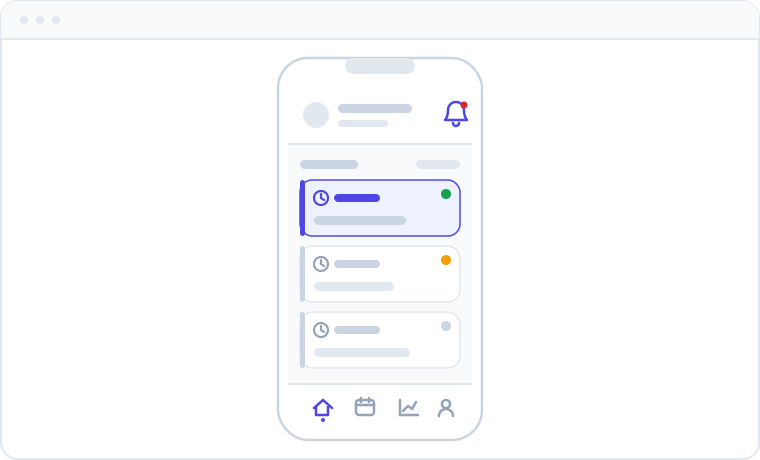
The Employee workspace, called "Caja," is a simplified, mobile-friendly version of Apolaris AI built for front-desk and provider staff. Instead of the full CRM, your team gets one focused screen with only the tools they need to run the day, so they spend less time hunting through menus and more time with customers.
What each person can actually do in Caja depends on their privileges — Caja never grants access on its own. It simply presents the daily tasks a staff member is already permitted to do. See Users & privileges and the Privileges glossary for the full controls.
What's in Caja
- Today view — the day's appointments at a glance, so staff always know who's coming and what's next.
- Agenda — the wider schedule when someone needs to look ahead or back.
- Checkout — take payment for a visit and close it out on the spot.
- Customers — look up a client's history, contact details, and notes.
- Earnings & bonus progress — see your own numbers and how close you are to bonus targets.
- Attendance clock — clock in and out without paperwork.
- Schedule — view your own shifts.
- Expenses — submit a business expense for approval (when allowed).
- Contact center — handle the site inbox from the portal (for receptionists, when enabled).
- My Messages — a private, brokered thread with management, in the More (Más) menu (see My Messages).
- Perfil — personal settings: contact telephone, WhatsApp connection, and biometric sign-in (see Your profile in Caja).
Several of these items are privilege-gated, so a given staffer may not see all of them. The sections below note who can use each.
Who sees the whole site vs. only their own work
The Today and Agenda views default to showing a staff member's own appointments. A receptionist or anyone who needs the whole location's schedule needs can_view_site_schedule — managers (is_manager) always have it. Without that privilege, the agenda shows only the person's own bookings, and other staff names are never listed.
Creating a new appointment from the agenda is only available to a provider (a user account linked to an employee profile) who also has can_add_booking. Assigning that new appointment to another staff member requires is_manager or can_view_site_schedule. The Customers lookup follows the same scoping as the rest of the CRM and requires is_manager or can_view_customer.
The site-wide calendar in Caja honors each employee's "Visible in booking calendar" setting — the same per-employee flag as the main calendar. Staff with it turned off (for example, owners or managers who don't take appointments) don't appear as columns in the portal's site view either.
Take payment at checkout
Checkout records the sale, the receipt, and the payment together, and ties them to the booking and the customer automatically — there's no separate card machine log or manual cash sheet to reconcile later.
Who can do this
Taking payment is gated on the can_manage_sales privilege plus the user's site scope. A staffer without can_manage_sales will not see a working checkout button, even inside Caja. Managers (is_manager) always qualify.
How payment is captured
| Method | How it's processed |
|---|---|
| Cash / transfer | Recorded immediately. The sale and receipt are created on the spot. |
| Card / OXXO / SPEI | Sent through a Mercado Pago hosted checkout link (Checkout Pro). The sale is created only after the gateway confirms payment, so pending or abandoned checkouts never inflate revenue. |
| Split payment (multiple tenders) | Always recorded directly — a single hosted-gateway charge can't be split. |
Online card/OXXO/SPEI capture only works when Mercado Pago is configured for your organization (in the payment configuration, by selecting it as the provider and entering an access token). If it isn't configured, an online method silently falls back to being recorded manually, like cash. There is no Stripe path in Caja's checkout — Stripe pay-by-link belongs to the separate Contact center surface, not the portal.
A discount applied at checkout lowers the net sale amount, and that net is what analytics and reports count. The discount, the itemized cart, and the influencer/promo attribution all flow through to Sales & point of sale and Analytics & Data Explorer.
Earnings & bonus progress
Each staffer can open an Earnings screen showing their pay-period totals and bonus progress, drawn straight from real sales — there's nothing to tally by hand. It is strictly self-scoped: it never exposes the manager payroll path or anyone else's numbers, and it only appears if the user is linked to an employee profile.
Who can do this
Visibility is controlled by can_view_own_earnings, which is on by default so staff can always see their own pay performance. A manager can turn it off per user if you'd rather not surface pay figures in the portal. Managers (is_manager) always see it.
Confine staff to the portal
You can keep limited staff in Caja so they only ever see the daily tools, never payroll, settings, or other people's data. Two separate privileges work together:
| Privilege | UI label | Effect |
|---|---|---|
can_use_pos |
"Use the POS" | The user may open Caja. Additive — they still land in the CRM after sign-in. |
pos_only |
"POS only — no CRM access" | A hard lock to Caja — even for managers. Requires can_use_pos. |
For confinement (keeping payroll and settings out of reach), enable both: can_use_pos so they may open Caja, and pos_only so they cannot navigate into the CRM. can_use_pos alone deliberately leaves the CRM open — it grants the till, it does not take anything away.
- Go to your user administration area.
- Open the staff member's user record.
- Enable Use the POS (
can_use_pos) so they may open Caja. - Enable POS only — no CRM access (
pos_only) to hard-lock them there. - Save. The next time they sign in, they go straight to Caja and stay there.
Combining the two locks: locked + portal = portal only; locked + not portal = management only (blocked from the portal). Leave the lock off for staff who legitimately need both surfaces.
See Users & privileges for how to set these, and the Privileges glossary for what each flag does.
Portal privileges at a glance
| Privilege (field) | Controls |
|---|---|
can_use_pos |
Lets the user open Caja. |
pos_only |
Hard-locks the user to Caja; the CRM is closed. |
can_manage_sales |
Lets the user take payment at checkout. |
can_view_own_earnings |
Shows the user's own earnings/bonus screen (default on). |
can_submit_expense |
Lets the user submit a business expense for approval from Caja. |
can_use_ccaas |
Lets a receptionist work the site's contact center inbox from Caja (when the module is enabled). |
can_view_site_schedule |
Shows the whole site's agenda instead of only the user's own. |
can_add_booking |
Lets a provider create appointments from the agenda. |
Managers (is_manager) pass all of the above automatically.
Your profile in Caja
The Perfil menu gives every staff member two self-service pages, right inside the portal:
- Mi perfil ("My profile") — update your contact telephone and connect your own WhatsApp number to the assistant (the WhatsApp block appears when a WhatsApp module is enabled for your organization). Connecting runs a short guided wizard: enter your number, receive a one-time 6-digit code on WhatsApp, and type it in — or simply reply to the WhatsApp message with the code and the screen notices automatically. Once the number is verified, WhatsApp notifications switch on automatically, so manager replies and leave decisions reach you on WhatsApp. See Your profile.
- Huella digital y seguridad ("Fingerprint & security") — register a passkey so you can sign in with your fingerprint or face instead of typing a password. A passkey sign-in also covers the two-factor (2FA) step. See Biometric sign-in (passkeys).
Both work for portal-confined staff too — no extra privileges are needed.
My Messages: your line to management
The More (Más) menu includes My Messages — the portal side of the Staff Desk channel, available to every signed-in staff member. It lists your conversations with management and opens each one as a chat-style thread, so you can read a manager's reply and answer straight from the portal. Identity stays brokered: you always see Management, never a specific manager, and they never see your personal contact details. Replying to a closed thread reopens it and notifies management, so you can follow up on an old matter without starting over.
Install Caja as an app
Caja installs as an app (PWA) on a phone or tablet. Once installed, staff can turn on web-push notifications to get alerts about new bookings and changes, even when the app is closed.
- Add Caja to the home screen on each shared front-desk device for one-tap access.
- Use Appointments & calendar on the full CRM for managers who plan the schedule; staff handle the day in Caja.
Caja shares the same live data as the rest of Apolaris AI. A checkout taken in the portal shows up instantly in Sales & point of sale and Analytics & Data Explorer, and a discount you apply lowers the net sale those reports count.