Material ordering (franchise)
proRun franchise supply through one or more HQ warehouses — sites order from HQ, HQ pushes stock to sites, credit and warehouse-to-warehouse transfers included.
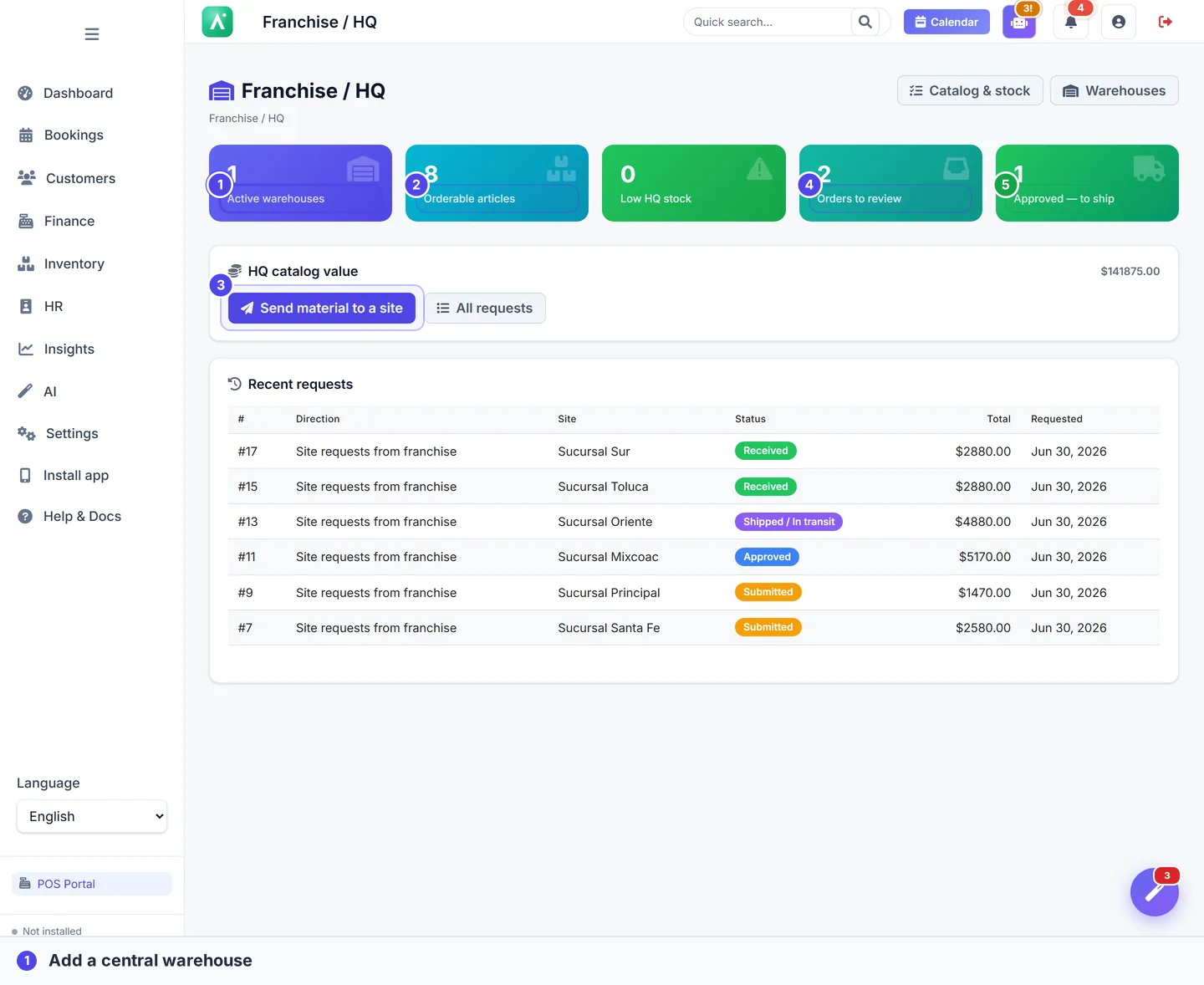
Material ordering lets your central operation move stock between HQ warehouses and individual sites (locations) instead of every site buying supplies on its own. HQ curates an orderable catalog with prices and limits; sites order against it; HQ approves and ships; and the site receives the shipment — the step that actually moves stock. The flow runs in both directions: a site can request from HQ, and a franchise operator can push stock out to a site. Everything draws from the same catalog and feeds straight into per-site inventory, so supply across all your sites is controlled, consistently priced, and visible in one place — no loose spreadsheets, phone calls, or mismatched price lists.
Material ordering is a franchise / multi-site feature. It must be enabled as a module (Apolaris turns it on for your organization) and you need organizations & sites set up before it appears in the sidebar under Inventory.
Key terms
- HQ warehouse — a central stock point. Your organization can run one or more warehouses (for example, regional hubs). Each holds its own stock and its own catalog. There is no separate "is HQ" flag — a user is an HQ operator when they hold the Manage Material Requests privilege (
can_manage_material_requests). - Catalog — the list of articles a warehouse stocks and (optionally) lets sites order, each with a price and order limits.
- Site stock — stock is per site, not global. A site's count lives in its own
SiteStock, scoped to the sites a user can see. See inventory and switching sites for how per-site stock and low-stock alerts work. - Material order (a material request) — one movement of articles between an HQ warehouse and a site, with its own approval and fulfilment workflow.
Roles: who does what
Access is granular and per-privilege — there is no fixed "franchise" or "HQ" role. A domain manager (is_manager) always passes every check below; a non-manager needs the specific privilege.
| Action | Privilege | Notes |
|---|---|---|
| Open the ordering area at all | can_order_material or can_manage_material_requests |
Managers always. |
| Place a site order to HQ | can_order_material and visibility of the target site |
A non-manager needs both: the privilege and the site in their visible sites. Managers can order for any site. |
| Curate the catalog, control HQ stock, approve / reject / ship orders | can_manage_material_requests |
This is the "franchise / HQ" side. |
| Push stock to a site ("Send to a site") | can_manage_material_requests |
Franchise operators only — site users cannot push. |
| Manage warehouses (create / edit / activate) and run warehouse transfers | can_manage_material_requests |
Same privilege gates curation, warehouse management, and transfers. |
| Grant and record credit payments | can_manage_material_requests |
Credit is granted at approval and settled by the HQ side. |
Managers (is_manager) hold both sides at once — they can place orders and run the HQ side. A non-manager with only can_order_material is a site buyer; a non-manager with only can_manage_material_requests runs HQ.
See Users & privileges to assign these, and the privileges reference for the full list.
Manage your HQ warehouses
An organization can run several HQ warehouses. The franchise operator creates and maintains them in Inventory → Franchise / HQ → Warehouses.
- Open Warehouses. Each row shows the warehouse, how many articles it stocks, and how many are orderable.
- Choose Add to create one, or Edit an existing warehouse. Set its name, address, and credit terms (below).
- Use activate / deactivate to take a warehouse in or out of service. Only active warehouses appear when placing orders or running transfers.
Credit terms are configured per warehouse:
| Setting | What it does |
|---|---|
| Allow buying material on credit | When on, orders from this warehouse may be paid on credit instead of cash. |
| Default days to pay (credit) | How many days a site has to settle a credit, counted from approval. |
| Credit surcharge (%) | Percent added to the cash price when an article has no explicit credit price. |
Curate the catalog (HQ)
Open Inventory → Franchise / HQ → Catalog & stock. The catalog is the per-warehouse list of articles; each row is a CentralStock entry tied to a shared inventory article.
- Add an article to the warehouse (only articles not already in this warehouse can be added) or Edit an existing row.
- Set the row fields:
| Field | Meaning |
|---|---|
| Current stock | Units this warehouse holds. |
| Cash price | Price per unit a site pays when paying cash/transfer. |
| Credit price (optional) | Explicit per-unit price on credit. Leave blank to apply the warehouse credit surcharge % to the cash price. |
| Orderable by sites | When on, sites may order this article from this warehouse. |
| Minimum order quantity | Smallest quantity a site may order at once (0 = no minimum). |
| Maximum order quantity | Largest quantity a site may order at once (0 = no maximum). |
| Product photo | Optional image shown to sites when ordering (stored on the shared article). |
- Save. Orderable articles appear to sites in the order builder right away.
The product code shown to sites is the article's SKU (its "Product code" in inventory).
To populate a large catalog fast, use Import with AI in the Franchise / HQ menu: upload an Excel or CSV file and the assistant maps the columns and bulk-loads the warehouse catalog for you to review.
Place an order (site → HQ)
A site user opens Inventory → Material orders and starts a new order. Site users can only order from HQ (direction is fixed to site requests from franchise) and only for sites they can see.
- Choose the warehouse and the site the stock is for.
- Add a line and pick a catalog article — its photo, product code, price, and current HQ stock appear automatically.
- Set the quantity and add more lines as needed; the running total updates live.
- Choose the payment method.
- Submit. The order is created with status Submitted and lands in HQ's review queue, locking in the prices at that moment.
Payment methods
| Method | Who can choose it |
|---|---|
| Cash | Any order. |
| Bank transfer | Any order. |
| Credit | Franchise side only. A site placing its own order to HQ cannot select credit — credit is granted by HQ. |
What gets validated
Each line is checked before the order is saved. An order is rejected if any line fails:
- Not orderable — a site may only order articles whose row is marked Orderable by sites in the chosen warehouse.
- Below minimum / above maximum — quantity must sit within the article's min/max order limits.
- Out of stock — a line may not exceed what the warehouse currently holds (
quantity > current stockis rejected). This applies in both directions.
If a line fails, the order is not created and your cart is preserved so you can fix it.
The order total uses snapshotted prices: each line records the warehouse price at the moment you submitted — the cash price for cash/transfer orders, or the effective credit price for credit orders — so the cost a site agreed to does not drift if the catalog price changes later.
Push stock to a site (HQ → site)
A franchise operator can send stock to a site without the site asking. Use Inventory → Franchise / HQ → Send to a site.
- Choose the warehouse, the destination site, and the articles + quantities.
- The same line validation applies (the push cannot exceed warehouse stock).
- Submit. A franchise-initiated push starts at status Approved and skips the site approval queue — it goes straight toward shipping.
A franchise operator can choose any active site as the destination; site users can never push, only request.
Process the queue (HQ)
Open Inventory → Material orders (or Orders to review in the Franchise / HQ menu for submitted site orders) and open an order.
- Approve — sets the order to Approved and records the approved quantities. If the order is on credit, approval is the moment the credit is granted (see below).
- Reject — sets the order to Rejected with an optional reason. (Only an order still Submitted can be approved or rejected.)
- Ship — once approved, mark it Shipped / In transit and record shipped quantities.
Approving and shipping do not move any stock. Stock physically moves only when the site receives the order (next section). Until then, neither HQ nor site counts change.
Receive the shipment (the step that moves stock)
This is the action that actually transfers stock. On the order detail, the site side (or a franchise operator) chooses Receive on a Shipped order. For each line:
- The received quantity is clamped to what the warehouse currently holds — a site can never be credited with units HQ never had.
- The warehouse's CentralStock decrements by the received quantity.
- The destination site's SiteStock increments by the same quantity.
- The order moves to status Received.
Without the receive step, no stock moves — the order can sit at Shipped indefinitely and counts stay unchanged. Always receive a delivery so HQ and site stock stay reconciled.
Any party who can act on the order may Cancel it while it is still Draft, Submitted, or Approved.
Cross-data impact
Receiving an order writes to per-site inventory: the destination site's stock goes up and the source warehouse's stock goes down. Those counts feed inventory dashboards, low-stock alerts (evaluated per site), and any reporting in the Data Explorer. Credit orders also create a receivable HQ tracks (below) and the line costs flow toward expenses.
Material credits
When an order is paid on credit, HQ extends the site a balance to settle later.
- Granting — when HQ approves a credit order, the credit is granted: the amount owed is snapshotted and the days-to-pay clock starts (the warehouse's Default days to pay, producing a due date).
- Reminders — as the due date approaches (and once overdue), Apolaris fires in-app reminders to both HQ and the requester.
- The ledger — open Inventory → Material credits to see granted credits: outstanding balances, due dates, an outstanding-total figure, and an overdue count. HQ sees all credits; a site sees only its own. Filter by site, status (Outstanding / Overdue / Settled), or due date.
- Recording a payment — from a credit order's detail, the HQ side records a payment (amount, method, optional note). Each payment is written to an immutable credits ledger and reduces the balance; when the balance reaches zero the credit is marked Settled.
Only granted credits (approved or later) appear in the credits list — a still-submitted credit order is not yet a receivable.
Warehouse-to-warehouse transfers
Transfers move stock between two HQ warehouses (for example, rebalancing a regional hub). They stay entirely at HQ level and never touch a site. Use Inventory → Franchise / HQ → Warehouses → Transfer.
- Choose a source and a destination warehouse — they must be different.
- Add one or more articles with quantities. Each quantity is checked against the source warehouse's current stock and rejected if it exceeds what's on hand.
- Confirm. The transfer applies immediately: the source warehouse's stock decrements and the destination's increments. If the destination didn't stock the article yet, a new catalog row is created there, copying the source's price, credit price, orderable flag, and min/max limits.
A transfer is applied at once and is not an approval workflow — there is no "receive" step. Double-check the source, destination, and quantities before confirming.
Export an order
Any order can be downloaded as a phase-by-phase receipt. On the order detail, choose the export in PDF, CSV, or XLSX. The receipt includes the order metadata (direction, site, warehouse, status, order total), the lifecycle phases with timestamps and who acted, and every line with requested / approved / shipped / received quantities and prices.
Tips and warnings
Set realistic min/max quantities on each catalog article so sites order sensible amounts and HQ avoids both stock-outs and over-ordering.
Add a clear photo and product code to every orderable article — sites order faster and with fewer mistakes when they can see what they're picking.
Use the column filters on the orders list to focus on a single site, direction, status, or date range when the queue gets busy.
The price a site pays is captured when the order is submitted. Updating a catalog price will not change orders already submitted — only new ones.
Why it helps
Running supply through HQ means every site buys approved articles at approved prices, with the cost recorded line by line and credit tracked centrally. Instead of each location chasing its own suppliers and price lists, you get controlled, costed, and trackable supply across the whole franchise — feeding straight into per-site inventory and expenses.