Using Apolaris AI on mobile
basicApolaris AI works on any phone or tablet browser; both the management CRM and the staff workspace (Caja) install as apps and can send push notifications.
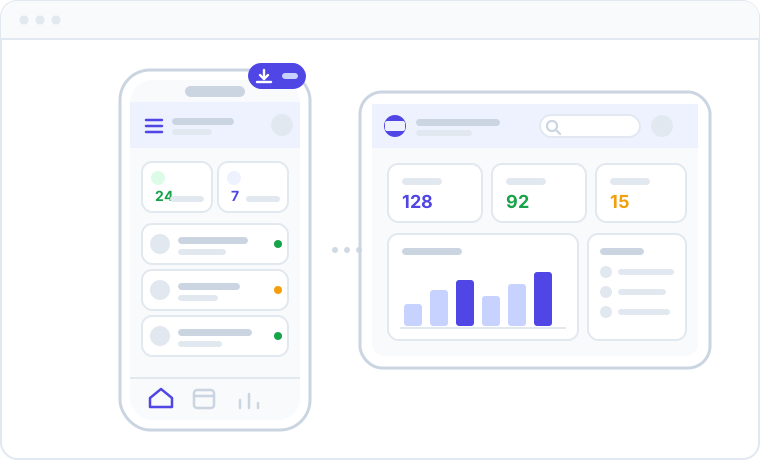
Apolaris AI goes wherever you do. There's nothing to download to get started — just open your phone or tablet browser, sign in, and you're working. There are two distinct mobile experiences, and it helps to know which one you're using:
- The full management CRM (calendar, customers, sales, analytics, settings) — this is a responsive website that adapts to a small screen. It runs in your browser, can be installed as an app with its own home-screen icon, and can send push notifications (for example when a customer messages your Contact Center) once you enable them per device.
- The employee workspace, Caja (the staff portal at
/portal/) — this is mobile-first and can be installed as an app with optional push notifications. This is the part most front-desk and provider staff use day to day.
Both install as apps, and they are two separate apps: installing the CRM puts the management CRM on your home screen, installing Caja puts the staff workspace there. Push notifications work in both: managers and agents enable them in the CRM (see below), and Caja staff enable them in Caja.
The full CRM in your browser
The full Apolaris AI management interface runs in any modern mobile browser, on phones and tablets alike. The layout is responsive, so it automatically reshapes for smaller screens.
On a phone (screens 768px wide or narrower) the left sidebar tucks away into a slide-out drawer:
- Tap the menu button (the three-line hamburger icon) in the top bar to slide the navigation open.
- The rest of the page dims behind a backdrop.
- Tap any menu item to go there, or tap the dimmed backdrop to close the drawer.
Everything you use on a desktop is still here — just resized to fit your hand. It keeps itself up to date, so there is never anything to download from an app store.
If a page feels cramped, rotate to landscape or use your browser's "Request desktop site" option for wide tables like Data Explorer. The data and your view are identical to the desktop — start something on your phone and finish it on your computer.
Install the CRM as an app
Installing puts Apolaris on your home screen with its own icon and opens it full-screen, without browser bars. It is also what makes notifications show the Apolaris icon instead of your browser's.
- Open your organization's Apolaris address in your phone's browser and sign in.
- Tap Install app — in the banner at the top of the page, or in the menu next to Help & Docs. - Android (Chrome): confirm Install. - iPhone / iPad: in Safari, tap Share, then Add to Home Screen.
- From then on, open Apolaris from its home-screen icon.
If Apolaris is already on your home screen but shows a plain letter or a picture of the page instead of the Apolaris logo, it was saved as a bookmark rather than installed. Remove that icon and install again as above.
Turn on notifications in the CRM
Managers and agents who work in the full CRM can get push alerts on their phone or computer — handy for catching the moment a customer messages your Contact Center, even when Apolaris isn't open.
- Open Notifications (the bell in the top bar), then Settings.
- Under Notifications on this device, tap Enable notifications and choose Allow when your browser asks.
- On a phone, also tap Install app there to add Apolaris to your home screen for the best experience.
It's turned on per device, so enable it on each phone or computer you want alerts on; to stop them, return to the same place and turn it off. On the same Settings page you also choose which events notify you — for example, whether contact-center messages alert you only when a human is needed or also when the AI answers.
If Notifications on this device doesn't appear, push isn't enabled for your organization yet — your Apolaris contact can turn it on. In-app (bell) and email notifications still work regardless.
The staff workspace (Caja) — built for phones
For front-desk and provider staff who run the day from a phone, the employee workspace — Caja — is built mobile-first. It puts a thumb-friendly navigation bar at the bottom of the screen so the actions you reach for most (today's agenda, customers, checkout) are always within reach.
If you sign in and land in Caja automatically, that's because your account is set up to use the employee portal. You can learn what's inside it in the employee portal guide.
Install Caja as an app
Caja is a Progressive Web App (PWA), so you can pin it to your home screen. You get an app icon, a clean full-screen view without browser bars, and (optionally) push notifications — with no app store needed.
- Open Caja in your phone's browser and sign in (or open the shareable install page at
/portal/install/). - Add it to your home screen: - iPhone / iPad (Safari): tap the Share button, then choose Add to Home Screen. - Android (Chrome): open the browser menu (three dots), then tap Install app or Add to Home screen.
- Launch Caja from the new home-screen icon. It opens full-screen at the staff workspace.
The app installs the Caja workspace, not the full management CRM. To reach full-CRM pages from Caja, use the Exit to CRM option, which opens them in your browser.
Keeping Caja up to date
The installed app keeps itself current — there's no app store to check and nothing to reinstall. When a new version is published, Caja notices within a few minutes (it checks in the background while open, and again whenever you bring it to the front) and shows a slim banner at the top:
- Tap Update now to apply the new version in place and reload — you're on the latest build in a couple of seconds.
- Tap Not now to dismiss the banner for that version; it'll remind you again on the next release.
- Some updates include a short note about what changed, or a link to reinstall if your device ever needs it.
Occasionally a release is marked required (for a security or breaking change). Those show a full-screen update prompt instead of a dismissible banner, so everyone moves to the safe version together. If an update can't apply after a few tries, the prompt offers recovery guidance and a Continue anyway option so you're never stuck.
App versions are published and managed entirely by Apolaris — there's nothing for you or your managers to configure. Update prompts appear only on the installed mobile app, never on a desktop browser, and only when a newer build is actually available.
Turn on push notifications
Push notifications are optional and are turned on per device, from inside Caja:
- In Caja, open Profile (the person icon in the top bar, then your profile).
- Find Notifications on this device and tap Enable notifications.
- Your browser will ask permission to send notifications — choose Allow.
To stop them, return to the same place and tap Disable.
Push notifications are best-effort and depend on two things: (1) your organization having push configured on the server (handled by Apolaris AI), and (2) your specific device being subscribed via the steps above. If the Notifications on this device option doesn't appear, push isn't enabled for your organization yet — in-app and email notifications still work normally. The same per-device opt-in is also available in the management CRM under Notifications → Settings.
What you need for push to work
| Requirement | Set by | Notes |
|---|---|---|
| Server push configuration (VAPID keys) | Apolaris AI (platform side) | When not configured, the toggle is hidden and push is silently skipped. |
| A subscribed device | You — in Caja → Profile, or the CRM's Notifications → Settings | Each phone/browser subscribes separately; enabling on one device doesn't enable others. |
| Browser support | Your browser | The browser must support service workers and the Push API; some browsers (notably older iOS) limit this. |
Who can do this
| Who | What they get on mobile |
|---|---|
| Staff who use the employee portal (the Use employee portal privilege) | Installable Caja app + optional push notifications, plus the responsive full CRM in a browser. |
Managers (is_manager) and other CRM users |
The responsive full CRM in any mobile browser, which also installs as its own app, plus optional push notifications enabled from Notifications → Settings. Installing Caja as well requires the employee-portal privilege. |
Mobile access never changes what you can see or do — your privileges and site visibility are the same on every device. See Signing in for how you're routed to Caja or the CRM at login.
A few handy tips
- Enable push only on devices you control; on a shared or borrowed device, always sign out when you're done.
- This help center works on mobile too — browse guides right from your phone.
Your data and view are exactly the same across devices and across the Caja app and the browser CRM — nothing is lost moving between them.