Contact Center (CCaaS)
proAn omnichannel WhatsApp inbox with an AI booking agent, three handling modes, reminders, retention automations, and pay-by-link deposits — plus optional voice and website web-chat channels.
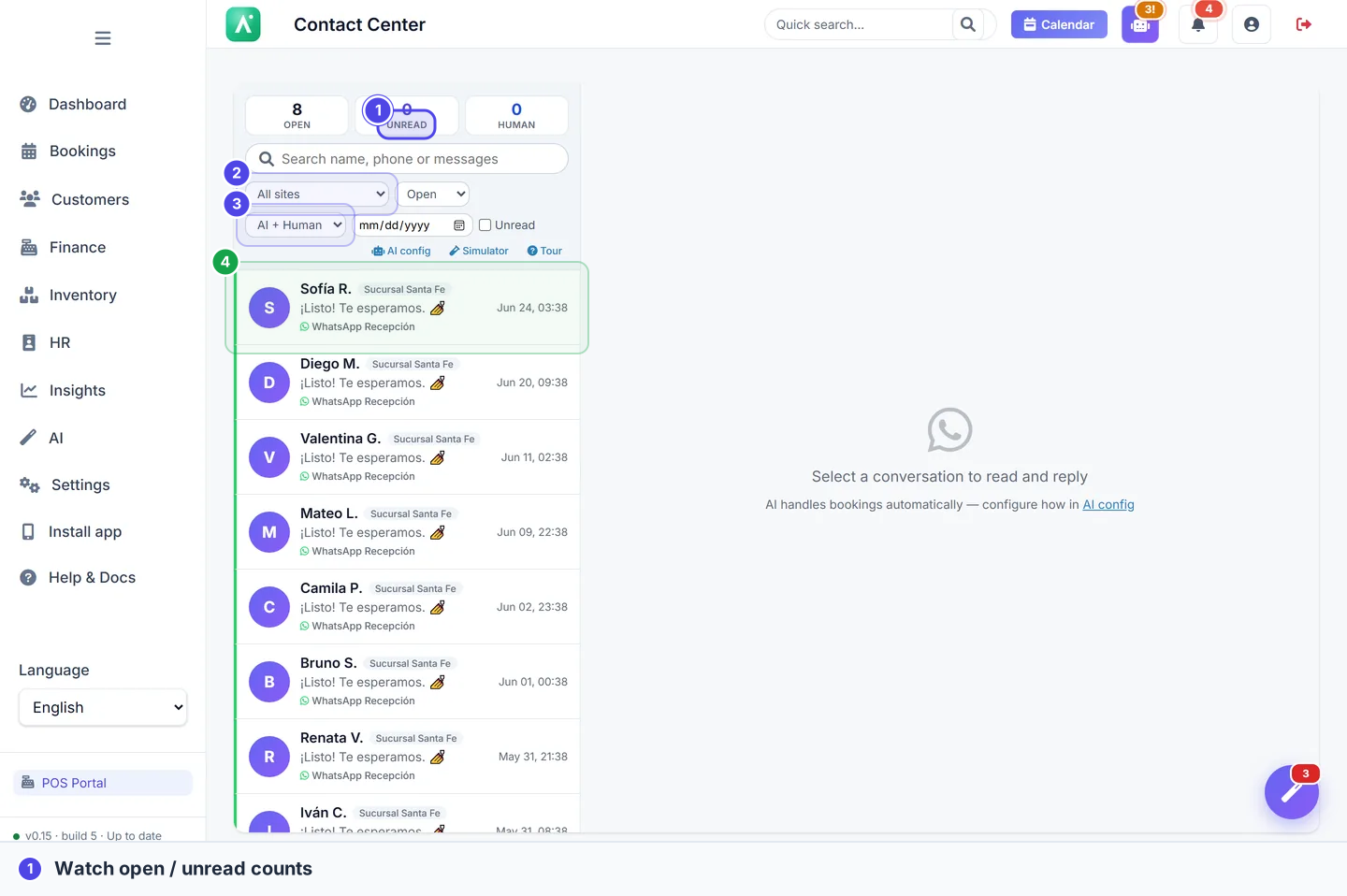
The Contact Center turns your WhatsApp number into a single shared inbox where an AI agent can answer questions and book appointments using your live Apolaris AI data, while your team steps in whenever they want. Instead of juggling phones, scattered chats, and a paper diary, every conversation, booking, and reminder lives in one place that already knows your services, staff, prices, and calendar.
The Contact Center is a module that must be enabled for your organization. If you don't see Contact Center in the sidebar, it isn't turned on for your plan — contact support.
What you get
- A unified WhatsApp inbox, organized per number and per site, so the right team sees the right conversations.
- An AI agent that replies in your customers' language and books real appointments against your live calendar.
- Three handling modes per channel — Auto, Suggest, and Human — plus a per-conversation AI/Human toggle.
- AI help for your human agents too: grounded reply suggestions, one-click conversation summaries, and canned responses, on both inbox screens.
- An AI Knowledge Base of your policies, FAQs, and business facts the AI answers from — written by hand or AI-drafted from your website, social profiles, or catalog, always with your review before anything goes live.
- Instant context on returning customers: a previous-conversations panel in the chat, with automatic AI summaries of what happened in each past thread.
- Automatic lead capture — every WhatsApp chat becomes a CRM customer record from the first message, and you can be alerted when a chat doesn't turn into a booking.
- Automations that fire on their own: reminders, no-show follow-ups, broadcasts, waitlist offers, and retention nudges.
- Pay-by-link deposits to secure bookings before the customer arrives.
- Optional extra channel types that feed the very same inbox — voice calls and web chat on your website — both off by default (see Channels beyond WhatsApp).
Who can do this
Access splits into two layers — working the inbox, and configuring the Contact Center.
| Capability | Who can do it |
|---|---|
| Open the inbox, read/reply to conversations, toggle AI/Human, approve drafts, request a payment link | Managers, or any staffer granted the Use contact center privilege (can_use_ccaas) |
| Configure AI behavior, reminder rules, retention automations, and remap numbers to sites | Managers only |
| Manage the AI Knowledge Base (add entries, train from your website, review drafts) | Managers only |
| Send a broadcast | Managers only |
| Configure the deposit/payment policy | Apolaris team (platform operators) |
| Add/connect/disconnect the underlying WhatsApp number | Apolaris team (platform operators) |
A front-desk staffer (for example, a receptionist) is not automatically allowed into the inbox just because they're on your team. A manager must grant them the Use contact center privilege on their user. See Users & privileges.
Grant inbox access to front-desk staff
Every inbox screen and conversation action is gated on the Use contact center privilege for non-managers. To let a receptionist work the inbox:
- Go to Users & privileges and open the staffer's user account.
- Turn on Use contact center and save.
- They will now see Contact Center in their sidebar.
The conversations a non-manager sees are scoped to their visible sites: they see chats for sites they can see, plus organization-wide conversations that aren't pinned to a single site. Managers see every conversation in the organization. (See Switching sites for how site visibility works.)
Use the shared inbox
- Open Contact Center from the sidebar.
- Pick the number or site inbox you want to work in. Conversations are grouped so each location only sees its own chats.
- Click a conversation to read the full history. Everything the customer and the AI have said is right there.
- Type a reply and send, or use the tools below to work faster.
Working more than one channel? Every conversation carries a channel badge — WhatsApp, web chat, voice, or the simulator — and a channel filter beside the other inbox filters (default All channels) narrows the list to one type. A customer also keeps a single identity across channels: when the person who chatted on WhatsApp later calls in, both threads link to the same customer record and shared history.
The inbox surfaces unread counts, conversations awaiting a reply, and an SLA flag when a conversation has waited longer than the response-time threshold your manager set. You can also assign a conversation to yourself or another teammate so two people don't reply at once.
See a customer's previous conversations
When a contact has chatted with you before, a history button with a count badge appears in the chat header. Click it to open a list (a bottom sheet on mobile) of up to 15 past conversations, newest first. Each one shows the date, an outcome pill — Open, Booked, Cancelled, Attended, Not booked, or Closed — a short AI summary of what happened (falling back to the last message when no summary exists yet), the channel and site, and a click-through to that thread. The same list appears in the conversation-detail side panel.
The summaries write themselves: when a conversation closes, a short staff-facing note (e.g. "wanted a gel manicure, booked Friday 10:00") is stored in your business's language, and older closed conversations get their summaries filled in gradually over time. As everywhere in the inbox, staff only ever see conversations from sites they can access.
Conversations also close themselves: once the appointment a chat was about has been served, the thread auto-closes as Attended, and threads with no activity for a long stretch are filed away automatically — though a chat where the customer is still waiting on a reply is never auto-closed. Outcome pills therefore reflect finished threads. The customer's next message simply opens a fresh conversation, and staff can reopen any closed thread from the inbox. (Both timers are manager settings in the AI behavior configuration.)
AI tools for human agents
The inbox and the conversation-detail page share the same assist toolbar, so your team gets identical help on both screens. The tools are available to anyone with inbox access (the Use contact center privilege) whenever your organization's AI is configured — if AI isn't set up, the buttons simply stay hidden.
- Suggest reply drafts the next reply straight into your composer. The draft is grounded in your real data — behind the scenes the AI checks live availability, the customer's appointments, and your service menu (read-only), so it quotes real slots and real prices. It is written in the customer's language, and it is never sent automatically: you review it, edit it if you like, and press send yourself. In this mode the AI cannot book, move, or cancel anything — only a human commits an action.
- Summarize opens a Conversation summary modal that briefs you in seconds: The customer wants (with a status chip), a short Summary, and Suggested next actions, plus a Copy button. The summary is written in your interface language, even when the chat is happening in another language.
- Canned… is a dropdown that inserts a saved answer from your canned-response library into the composer.
Summarize is the fastest way to take over a long AI-handled thread: read the brief, pick a suggested next action, then hit Suggest reply for a ready-to-edit first draft.
Handling modes: Auto, Suggest, and Human
How the AI participates is controlled at two levels.
Per-channel handling mode (a manager setting on each WhatsApp number's AI behavior):
| Mode | What happens |
|---|---|
| Auto | The AI replies on its own and can book appointments without a human. |
| Suggest | The AI drafts a reply, and a human approves (or discards) it before it sends. |
| Human (Off) | Humans only — the AI does not reply. |
Per-conversation toggle (any inbox user with access): on any single conversation you can flip between AI and Human handling, regardless of the channel's default mode.
- On a conversation, use the AI / Human toggle to choose who is driving.
- Leave it on AI to let the agent answer and book automatically.
- Switch to Human the moment you want to take over; the AI stops replying immediately. (Sending a manual reply also switches the conversation to Human automatically.)
- In Suggest mode, the agent prepares a draft reply for your review — read it, then Approve to send or Discard it.
Replies sent from the paired phone's own WhatsApp app count too: a message your team sends from the phone is captured into the conversation thread as a staff reply and flips that conversation to Human, so the AI never answers behind a colleague's back. Hand the conversation back with the AI / Human toggle when you want the agent to resume.
Use Auto for off-hours and busy rushes, Suggest while you're building trust in the AI's replies, and flip individual conversations to Human for sensitive or complicated cases. You can switch back and forth at any time without losing context.
Each channel also has an AI on/off switch (on by default). Turning a number's AI off is the same as putting that whole number into Human-only handling.
Attention hours and a reply limit per number
Each WhatsApp number can also say who attends it by time of day — the AI, or your team — and how many AI replies a conversation may get before a person steps in. Open Contact center → Settings → Numbers and find Who attends this number on the number's card:
| Choice | What happens |
|---|---|
| The AI attends at all hours | The default — nothing changes. |
| The AI attends only inside these hours — outside them, your team takes over | Outside the ticked hours a new message is handed to your team. |
| Your team attends inside these hours — the AI covers the rest | The AI stays quiet while your team is on duty and covers everything else — evenings, weekends, holidays. |
Tick the days and hours that apply; they follow your organization's time zone. When a message arrives while your team is on duty, the conversation flips to Human: the customer is told that a member of your team will get back to them (the optional message field on the card lets you write your own wording), and everyone with Contact center alerts gets the usual "needs a human" notification. If nobody has replied by the time the AI's hours open again, the agent takes the conversation back on the customer's next message. A chat a person already answered stays with that person.
Hand off to your team after N AI replies does the same after a set number of AI replies in one conversation. Leave it blank to use the AI agent setting (the company default, or the location's override), or enter 0 to never cap this number. The cap never interrupts a customer who is in the middle of booking.
Voice lines have the same two settings on Voice → Voice settings, where "a person" means a call transfer — see When the caller needs a person.
Match Your team attends inside these hours to your reception's shift when you'd rather greet customers personally during the day and let the AI cover the rest.
The AI agent is grounded in your data
The AI agent is grounded in your real Apolaris AI data, so it answers about hours, services, and availability accurately and can create a booking on the spot against your live calendar. When it books, the appointment shows up exactly like one your team entered — see Appointments & calendar.
By default, the agent tells customers at the start of a conversation that they're chatting with an automated assistant. A manager can customize that disclosure text in the AI behavior settings.
If your organization's AI features aren't configured, the agent and the "suggest reply" / "summarize thread" tools simply stay quiet — the inbox keeps working as a normal human messaging tool.
How the AI talks to customers
The agent is tuned to read like a real receptionist, not a bot:
- It greets once at the start of a conversation and then gets on with the job — it only greets again after a long gap (around six hours of silence).
- It uses plain service names, without internal SKU-style codes from your catalog (customers see "Gel Manicure", not "GM012 Gel Manicure"). Only the chat presentation changes — your catalog data stays exactly as you entered it.
- It offers 3–4 relevant options instead of pasting the whole menu, groups variants of the same service into one option, and asks which version applies.
- It handles very large catalogs: when your menu is big, it searches the full list behind the scenes and only surfaces the matching services.
- It never invents prices — every price it quotes comes from your real service list.
- Its replies use WhatsApp-native formatting (WhatsApp's own bold and italics), so messages look right on the customer's phone.
On numbers running on our hosted quick-start gateway, customers also see read receipts and a live "typing…" indicator while the AI composes its reply — the wait feels like a person typing, not dead air.
The agent remembers returning customers
The AI keeps a private memory for each customer, so regulars don't have to repeat themselves in every new conversation. It carries over preferences and facts the customer shared — a favorite service, a preferred staffer or location, an allergy they mentioned — and it also draws on the staff notes saved on the customer's record. The memory updates itself automatically after the AI replies, without ever slowing the conversation down.
Need to review or correct what the AI has remembered about a customer? Each customer's memory can be viewed and edited by an administrator — contact support.
Make the AI sound like your brand (managers)
Managers can tune how the AI receptionist sounds in Contact Center → Agent settings → AI Behavior, on the agent profile form. Four style controls sit alongside the existing role and instruction fields, and — like the rest of the profile — they can be set for the whole organization or overridden per site:
| Control | Options | Default |
|---|---|---|
| Emoji use | No emojis · A light touch (1 per message max) · Expressive (emojis welcome) | A light touch |
| Formality | Match the customer · Informal (tú / first names) · Formal (usted / courteous) | Match the customer |
| Reply length | Short and snappy (1-2 sentences) · Medium (2-4 sentences) · Detailed when helpful | Short and snappy |
| Custom greeting for new conversations (optional) | Free text, up to 300 characters | Empty — the AI greets naturally |
The defaults match how the agent already behaved, so you only need to touch these dials if you want a different voice. Choosing Formal (usted / courteous) also switches off the agent's informal conversational persona, so the two can never contradict each other.
The custom greeting is only used as the basis for the first AI message of a conversation — after that, the agent follows its normal no-re-greeting discipline (see How the AI talks to customers). The AI also adapts your greeting to the customer's language, so a greeting written in Spanish still lands naturally with an English-speaking customer.
Start from a preset for your business type
At the top of the profile form, the boxed row Start from a preset for your business type writes the whole persona for you. Pick your vertical under Choose a business type… and press ✨ Fill with preset: professionally written copy for the role name, greeting, behavior instructions, emoji style, formality, and reply length is filled into the form — in your interface language, with your business name already in place. There are 16 presets (nail salon, beauty salon, barber, spa, gym, clinic, auto workshop, restaurant, bar, café, bakery, retail, grocery, supermarket, pharmacy, and a general option), and the picker pre-selects the industry you chose when your organization was created.
Applying a preset only fills the form — as the hint says, it "Pre-fills the fields below — review and Save.", so nothing changes until you press Save. It does, however, overwrite anything already typed in those fields, so apply the preset first and customize afterwards.
Teach the AI your business facts (managers)
The agent already knows your services, prices, and calendar — the AI Knowledge Base covers everything else customers ask: deposit and cancellation policies, parking, what a treatment involves, house rules. Open Contact Center → AI Knowledge Base in the sidebar (managers only) to manage the facts, FAQs, and policies the AI receptionist answers from.
Each entry has a term or question, an answer, a type (glossary, FAQ, policy, or service explainer), a language, optional keywords, and a priority. Two toggles control behavior: active (inactive entries are ignored) and pin — pinned entries are always available to the AI, so pin the policies it must never miss. Entries you add or edit by hand go live immediately, and the page header shows your active and pinned counts at a glance.
Train the AI from your website & social profiles
Instead of typing everything in, let the AI draft the entries for you:
- On the Knowledge Base page, enter your business website URL, optionally your social profile links, and a target language.
- Click Analyze & draft entries. A background run reads your site — contact details, opening hours, prices, key pages — and your public social bios, then the AI drafts up to ~16 knowledge entries.
- Review and approve (see below). Nothing goes live without your review.
While it works, a progress page shows a live progress bar with phase labels, elapsed time and an ETA, plus a Cancel button — a queued run cancels instantly, a running one stops between steps and keeps its partial results. If your site is unreachable or the AI is busy, you get a friendly error message rather than a stuck run. Only one run can be active at a time: re-submitting simply resurfaces the active run, and a banner on the Knowledge Base page links back to it while it's working.
Quick starts: catalog drafts and starter pack
Two shortcuts sit next to the website trainer:
- Draft from catalog — the AI drafts service explainers and FAQs from your own service catalog. Drafts go through the same review screen as website training.
- Seed starter pack — instantly applies curated per-industry basics (like deposit and cancellation terms). It's safe to re-run, and the button is greyed out if no pack exists for your industry.
Review before anything is published
Every AI-drafted run ends on a two-panel review screen:
- Left: the business facts that were detected — name, phone, email, address, hours, price range, social links, and the pages that were read — so you can sanity-check what the AI saw.
- Right: the proposed entries, each with a checkbox, editable text, and a per-entry Pin toggle. The AI pre-suggests pinning up to three key policies.
Tick the entries you want, adjust any wording, and approve — the selected entries are published immediately. Entries you already have are skipped automatically, so approving twice never creates duplicates.
Routing conversations to the right site
Each WhatsApp number (a channel) can be assigned to one or more sites (locations). That assignment decides which site sees a conversation and where the AI books by default:
- Assign one site to a number for a dedicated per-location line — its conversations and bookings default to that site.
- Assign several sites to share one number across locations.
- Assign no site to make a number serve the whole organization; the AI will ask the customer which location they want.
Remapping an existing number to its sites is a manager setting in the Contact Center settings (Numbers). Adding or connecting the underlying WhatsApp number is reserved for the Apolaris team (see Connecting your WhatsApp number).
Every WhatsApp chat becomes a lead
You never have to copy a phone number out of a chat again. From the very first inbound message, a WhatsApp contact automatically becomes a customer record in your Customers list, identified by their phone number — findable and bookable immediately, with a placeholder name and email until the person introduces themself.
- The AI learns their name. The agent asks a new customer's name early in the conversation and saves it to the record the moment they state it. A deterministic backstop also scans the chat and applies a name, email, birthday, or address the customer explicitly stated — even if the AI missed it.
- Your data is protected. Only records that were auto-created from WhatsApp ever get their placeholder name replaced. Customer records your staff entered by hand are never overwritten — at most, blank fields are filled in.
- Staff aren't leads. Messages from your own team's phone numbers are never recorded as customers.
If you'd rather link a chat by hand, the conversation-detail sidebar has an Add as customer button — one click creates (or links) the record and confirms with "name — added as customer".
Get alerted when a chat doesn't book
A warm lead who chatted but never booked is easy to lose. The Contact Center can flag exactly those conversations:
- Go to Contact Center → Agent settings → AI Behavior.
- Set Alert when a chat has no booking after (hours, 0 = off). The default is 2 hours; enter
0to turn these alerts off.
When a conversation passes that age without a booking, managers — plus the assignee, when the conversation is assigned — receive a notification ("Lead without booking: …") that deep-links straight to the conversation, so someone can follow up personally. Each conversation alerts at most once, so the bell is never flooded, and your own staff's numbers never trigger an alert.
These alerts ride the regular Contact Center notification preference (on by default) — see Get notified when a message arrives. Someone who has muted Contact Center notifications won't receive lead alerts either.
See what the AI booked each day
Teams that keep a second calendar while they adopt the agent — Agenda Pro, Booksy, or a paper diary — need one place that answers "what did the AI book today?". Contact Center → AI bookings is that list.
- Pick a day, and optionally a site and a professional. The default is every site and every professional you can see.
- Booked by the AI on this day lists the appointments the AI created that day — the list to copy into your other calendar at the end of the day — followed by the reschedules, service changes and cancellations the AI made that day to appointments it had booked earlier.
- Appointments scheduled for this day shows the AI-made appointments whose visit falls on that day, with their current status.
Each row carries the time, the customer and their phone, the services, the professional, the site, the channel (WhatsApp, voice, or a booking the customer made through a link the AI sent), the status, when it was booked, any special request the customer made, and links to the conversation and to the booking. Appointments your staff entered by hand, or that the Calendar Sync mirrored in from another system, are not listed — they already live in that system.
Front-desk staff who work from the Employee Portal find the same list under More → AI bookings.
WhatsApp usage and monthly steps
From 1 October 2026 Meta also charges for WhatsApp replies. Each business number gets 1,000 free replies a month — free-form messages sent inside the 24-hour customer service window, which is what the AI agent and your team send while chatting — and every reply after that is billed at the recipient country's utility rate. Templates such as reminders are billed from the first one, and everything sent in the 72 hours after a customer taps a click-to-WhatsApp ad stays free.
Contact Center → WhatsApp usage shows, for each of your numbers:
- this month's replies against the free allowance, the replies beyond it, the templates, a projection for the end of the month and, on the official API, the messages Meta bills and the charges recorded;
- a bar chart of the last twelve months, split into free replies, replies beyond the allowance, templates and everything else (the ad window, notices to your team, text sent outside the 24 hours);
- how many replies were given on the web chat instead of WhatsApp.
A number connected through WhatsApp Web is not billed by Meta. Its counts show what it would use on the official API, and your steps still apply to it.
Decide what happens as the month adds up
Each number takes up to five steps. A step is a number of replies this month and what happens when the number reaches it:
- Notify the team — the managers get a notification, once a month per step.
- Continue on the web chat (send one link) — from then on the AI stops answering on WhatsApp. The customer gets ONE message with a link that continues the same conversation on a web page: their WhatsApp messages are there, the AI answers right away at no cost, and they can book online with one tap. The message that was waiting is answered as soon as the page opens, and your team sees the web part in the same inbox thread. If the customer keeps writing on WhatsApp that day, nothing is sent and the team is alerted instead; the link goes out again after 24 hours.
- Stop the AI — the team answers by hand — the AI stops answering on WhatsApp and new chats wait in the inbox for your team, with a notification.
A step that moves or stops the AI stays in force until the month ends; everything starts again on the 1st. Replies inside a click-to-WhatsApp ad window always go out on WhatsApp, because they are free. Until you set your own steps, an official number warns at 80% and at 100% of the free allowance and changes nothing else.
How the AI keeps the count down
- A closing «thanks» or «👍» after an appointment is settled gets no reply — the customer already has the confirmation.
- Each appointment is confirmed once, without an «is that OK?» afterwards, and a confirmation that already went out is not sent again.
- A second «yes» to an appointment reminder that was already confirmed gets no second confirmation.
- There is no «do you still want to book?» follow-up after a chat that cancelled its appointment.
- Group bookings are listed once; when a companion's time is not free, the AI offers the free times instead of repeating the whole list.
Managers, and staff with access to the Contact Center settings, can open the page and change the steps. Staff limited to some locations only see the numbers that serve those locations.
Reply faster and reach more customers
- Canned responses and quick replies: insert a saved answer or send a one-tap option (like time slots) instead of typing. Managers maintain the canned-response library.
- Reminders: appointment reminders go out automatically so customers don't forget.
- No-show follow-ups: a still-unconfirmed appointment can be auto-marked as a no-show a set number of hours after it ended.
- Broadcasts: send an announcement or offer to a segment of customers at once (all customers, lapsed clients, or those with an upcoming appointment).
- Waitlist: when a slot opens, the system can offer it to waiting customers.
- Retention automations: rebooking nudges, win-back messages for lapsed clients, birthday greetings, and post-visit review requests run on their own.
Business-initiated (proactive) messaging is a compliance-gated capability. Everything the business sends first on WhatsApp — reminders, win-back and other retention automations, broadcasts, waitlist alerts, and journey sends — is governed by platform-level switches that ship off for new organizations, in line with WhatsApp's messaging policies. Contact support to enable proactive messaging for your organization; broadcasts require an additional opt-in on top. Replying to customers who message you is never affected. When one of these modules is disabled, its settings tab (Reminders, Automations, WhatsApp Templates, or Broadcasts) is hidden from the Agent settings page.
Reminder rules, retention automations, and broadcasts are manager-only to set up. A staffer with inbox access can work conversations but cannot configure or send these. See the configuration sections below.
Configure reminders and retention (managers)
Open the Contact Center settings to set these up. They are manager-only screens.
Reminders (the Reminders tab):
1. Turn reminders on.
2. Set how many hours before each appointment to send (e.g. 48,24,2 sends three reminders).
3. Customize the message template if you like — placeholders {name}, {service}, {site}, {date}, and {time} are filled in automatically.
Customers can reply CONFIRM / RESCHEDULE / CANCEL straight from WhatsApp, and those actions update the booking.
Retention automations (the Engagement tab):
1. Enable any of: Rebooking nudge, Win-back (lapsed client), Birthday greeting, or Post-visit review request.
2. Set the threshold in days (e.g. days since last visit for rebooking/win-back, or days before the birthday).
3. For review requests, paste the review link used by the {link} placeholder.
4. The same tab holds the auto-mark no-show delay.
Each customer gets at most one message per automation per window, so they are not spammed even if they fit more than one rule.
Collect deposits with pay-by-link
When you want to secure a booking, send a pay-by-link deposit request right in the chat. The customer pays from their phone, which cuts no-shows and protects your calendar from empty slots.
Deposits draw on a per-organization payment configuration and a deposit policy, which the Apolaris team sets up for you:
- Provider: the payment gateway used for the link (for example, Stripe or Mercado Pago).
- Deposit policy: no deposit, a fixed amount, or a percentage of the service price.
- Auto-send on booking: when enabled, a deposit link is sent automatically the moment the AI books an appointment — your customer doesn't wait for a human to ask.
Payments must be enabled and a deposit policy chosen before pay-by-link works. If you'd like to collect deposits, contact support to configure the provider and policy. Until then, the "request payment" action is unavailable.
Reminders, follow-ups, and bookings all draw from the same live data as your Appointments & calendar and Customers. There is no copying between apps or spreadsheets.
How your WhatsApp number connects
Behind the scenes, your number reaches WhatsApp in one of two ways, and Apolaris sets up the right one with you:
- The official Meta WhatsApp Cloud API — the direct, business-grade connection from WhatsApp itself. It's the most reliable for delivery and scale.
- A hosted connection — a quick-start gateway we run for you, handy for getting started fast.
Both feed the same inbox, AI agent, reminders, and automations, so the experience is identical whichever one you're on. You don't choose or configure this — tell us the number you want to use and we connect it for you (see below).
The 24-hour rule for messaging
WhatsApp protects customers from unwanted business messages with a simple rule that's worth knowing:
- Within 24 hours of a customer's last message to you, you can reply freely with any text — this is a normal back-and-forth conversation, and the inbox and AI agent handle it for you.
- Outside that 24-hour window, you can no longer send free-form text. To reach the customer again, you must use a pre-approved message template — a fixed message format that WhatsApp has reviewed in advance.
This is why proactive messages like appointment reminders and broadcasts are sent as templates: they often go out long after the customer last wrote in. When your number runs on the official Meta Cloud API, Apolaris registers and uses approved templates for these flows so they're delivered reliably. Every reply you send while a conversation is active stays free-form as usual.
If you ever start a brand-new conversation with a customer who hasn't messaged you first, that message must be a template too — WhatsApp doesn't allow unsolicited free-form text. Apolaris handles this for you in reminders, broadcasts, and retention automations.
Connecting your WhatsApp number
Connecting (or changing) the WhatsApp number behind your Contact Center is handled by Apolaris for you — there's no QR-scanning or technical setup on your side. Your number can run on the official Meta WhatsApp Business API (recommended for reliability, delivery and scale) or our quick-start gateway — we pick and configure the right one for you. When you're ready to go live, contact support with the number you want to use and the site(s) it should serve, and we'll connect it and route conversations to the right team.
The number-pairing workflow (start session, scan QR code, connect or disconnect) is reserved for the Apolaris team and is not available to your staff. What managers can do in the Contact Center settings is remap an already-connected number to the sites it serves and rename it. If your inbox isn't receiving messages, contact support and we'll check the connection.
Channels beyond WhatsApp
WhatsApp is the channel most organizations run, but the Contact Center is built around a channel type — every type feeds the same inbox, the same AI agent and the same knowledge base. Which types your organization may use is set by Apolaris per plan:
| Channel type | What it is | Default |
|---|---|---|
| Your WhatsApp number(s), routed per site | On | |
| Simulator | A safe test chat for trying the agent without messaging a real customer | On |
| Voice | Phone / voice calls answered by an AI voice agent | Off |
| Web chat | A chat bubble on your public website | Off |
Turning a channel type off is a visibility gate, not a data wipe: its settings and endpoints are hidden, but existing channels and their history are kept. Ask support to turn one on or off.
Voice channels
Voice is an optional add-on and ships off. It is not part of a standard Contact Center — ask support if you want it enabled for your organization.
When it is on, real phone calls are answered live by an AI voice agent and filed into the same inbox as everything else — the caller becomes a contact with a conversation, complete with voicemails and any call recordings. Managers get a dedicated Voice section in the sidebar (Numbers, Calls, Voice settings, and Usage) where they get phone numbers — either as a request Apolaris arranges with the carrier for you or, where enabled, a self-serve purchase that always goes through platform approval — route callers through call flows, transfer to people, take voicemail, pick or clone the agent's voice, and track call minutes and cost. The full guide: Phone & Voice.
Web chat on your website
Web chat is also off by default. A manager turns it on from Bookings → Services → Website → Add-ons, and it needs the Contact Center module. Visitors chat anonymously from a bubble on your public site; the conversation lands in your inbox exactly like a WhatsApp thread, with the same handling modes and the same option to take over. See Your public website.
Get notified when a message arrives
You no longer have to keep the inbox open to know a customer wrote in. When a new WhatsApp (or other channel) message arrives, Apolaris AI raises a notification so the right people can step in.
- In the app — the bell in the top bar lights up, and the message appears in Notifications with an Open inbox shortcut that takes you straight to the conversation.
- On your phone — if you have turned on push notifications, you get an alert even when Apolaris is not open; tapping it opens the inbox so you can reply on the spot. This works from the management CRM and the Caja staff app — see Using Apolaris on mobile to enable it.
By default you are alerted when a message needs a human — a brand-new conversation, an AI→human handoff, or a chat already in Human mode. If you would also like to hear about chats the AI is handling on its own, turn on Also when the AI answers in Notifications → Settings. To stop these alerts entirely, turn off Contact center messages in the same place.
So it never floods the bell, a busy conversation only alerts once until someone opens it. You can try the whole flow end-to-end with the Simulator — it raises notifications exactly like a real number.
Assigning a conversation to an agent in the inbox also alerts that agent; managers are always notified.
Your team's WhatsApp copilot
Separately from the customer-facing agent, staff can link their own WhatsApp number to Apolaris and chat with a private staff copilot — asking about their schedule or leave balance, or relaying a message to their manager. Two things make getting connected painless:
- The 6-digit verification code arrives on WhatsApp — and staff can complete verification by simply replying with the code in that same chat. No need to go back to the app.
- If a known staffer writes in from a number they haven't verified yet, the AI answers them as a customer — and they receive a once-daily "Activate your WhatsApp copilot" notification in the app, explaining what happened and linking to My profile → WhatsApp to finish verification.
This is a module Apolaris enables per organization — if the WhatsApp section doesn't appear on your profile, contact support.
Tips
- Keep a small library of canned responses for your most common questions to save your team hours each week.
- Pair reminders with pay-by-link deposits to see the biggest drop in no-shows.
- Start in Suggest mode during your first weeks to review AI drafts and build trust, then move busy numbers to Auto.
- Setting up the AI persona? Apply your industry preset first, then tweak — it's faster than writing role, greeting, and instructions from scratch.
- Fill the Knowledge Base on day one: seed the starter pack, run website training, then review — the AI answers policy questions correctly from the very first chat.